Build the business apps your team needs through conversation.
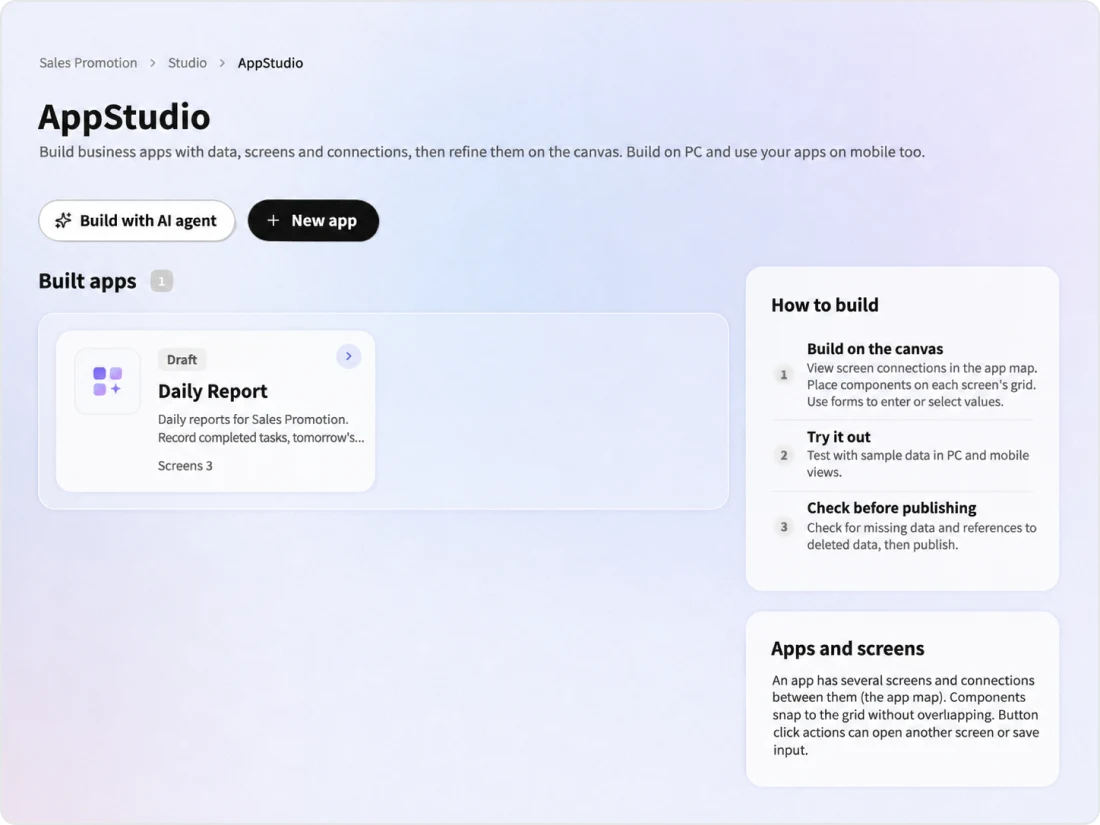
AppStudio (formerly AppBuilder) assembles the data, screens and connections between screens when you ask the AI agent for the business app you need. On the canvas, you can adjust component layout and conditions without writing formulas, check how it works with sample data, and then publish. App data is saved as Library content.
Apps built with AppStudio run inside your Kanata project. App data is saved to the Library and referred to by the AI agent as a basis. What each role can view and edit in the app's screens is set with app permissions. Apps that support actions can also be operated by the AI agent. You build and run business apps on the same foundation where you use AI.
01
What it covers
Building business apps made up of input, list and detail screens, such as daily reports, deal management, quotes, inquiry management and registers
02
Best suited for
Organizations that want to turn work managed in spreadsheets or on paper into apps, but have limited people or budget for system development
03
What you can aim for
Letting frontline staff build and adjust business apps, and connecting that data to the use of AI
Problem
Challenges organizations face in building business apps
Surveys show that more than 80% of companies lack people to drive DX, and few organizations in Japan yet have an environment where employees can develop apps or AI agents using generative AI. A certain number of small and medium-sized enterprises still rely mainly on paper and verbal processes.
Share of companies lacking enough people to drive DX
85.5%
The total of "somewhat lacking" and "significantly lacking", at about the same level as in FY2024 and FY2023.
Share with a technical environment where employees can develop apps or AI agents using generative AI (Japan)
15.3%
The share answering "we have a technical environment where employees can develop apps or AI agents using generative AI". It was 22.1% in the US, 27.4% in Germany and 31.1% in China.
Even with work they want to systematize, "there aren't enough people to develop it"
Management continues in spreadsheets and on paper, and "data is hard to share and reuse"
Each department adopts its own tools, and "data and permissions are managed separately"
Data accumulated in business apps "doesn't connect to the use of AI"
Simply adopting a separate app-building tool can mean that connecting app data to AI and managing permissions must be set up separately. Apps, data and AI need to sit on the same foundation.
Scenes
How AppStudio is used
Examples of how department staff use AppStudio. The video shows how to build a deal management app.
The companies and people shown are fictitious.
Scene 01
A deal management app
Sales staff
BeforeDeal information was managed in a spreadsheet and was hard to share across the team.
Ask the AI agentAsk the AI agent, "I want to manage deals", and it assembles the data, screens and connections between screens.
Adjust on the canvasAdjust layout, filters and button actions by making selections instead of writing formulas, and check how it works with sample data.
Publish and consult the AI agentAfter the pre-publish check, the user publishes the app. Include the folder holding the deal data in the AI agent's reference folders and discuss next actions.
With KanataDeal data is shared with the team in the app, and members granted folder permissions also use it in the Library and with the AI agent.
BeforeThey wanted to systematize daily reports but didn't have the people to develop it.
Build a daily report appAsk the AI agent, "I want to manage daily reports", and it assembles input, list and detail screens and the connections between them.
Input from smartphonesThe app is built on a PC, and employees can also enter reports from their smartphones.
Weekly summariesInclude the folder holding the daily report data in the reference folders, and ask the AI agent for a weekly summary.
With KanataEven without developers, you can build and adjust a daily report app to fit how your team works.
BeforeEach department adopted its own tools, and data and permissions were managed separately.
Build a register appBuild an equipment loan register by asking the AI agent and adjusting on the canvas.
Set app permissionsFor each role, set which screens can be opened and the permissions for each data type (for all members' data and for their own data, choose none, view or edit).
Manage in the LibraryRegister data is saved as Library content. The data permissions set in the app are applied to the permissions of the folder where the data is saved.
With KanataApp data and permissions are managed in the same project as other work.
These scenes are examples of use. The people shown are fictitious.
Platform
The advantages of being part of an AI platform for organizations
Apps built with AppStudio run in the same project as the Library and AI Agent. Without preparing a separate database, app data is referred to by the AI agent as a basis.
Saving data to the Library
App data is saved as Library content. Data types are managed as Library content types.
App permissions by role
For each role, set which screens can be opened and the permissions for each data type (all members' data and their own data). The permissions you set are applied to the permissions of the Library folder where the data is saved.
Working with the AI agent
Build app drafts in conversation with the AI agent. Apps that support actions can be operated by the AI agent if allowed in execution permissions.
Managing published screens
Changes to screens after publishing are not reflected for users until the next time you publish.
Build on PC, use on smartphones
Apps are built on a PC and can also be used on smartphones.
Used from the sidebar
Published apps appear under "Studio" in the sidebar. They are shown only to members who have a role in the app.
Features
AppStudio features
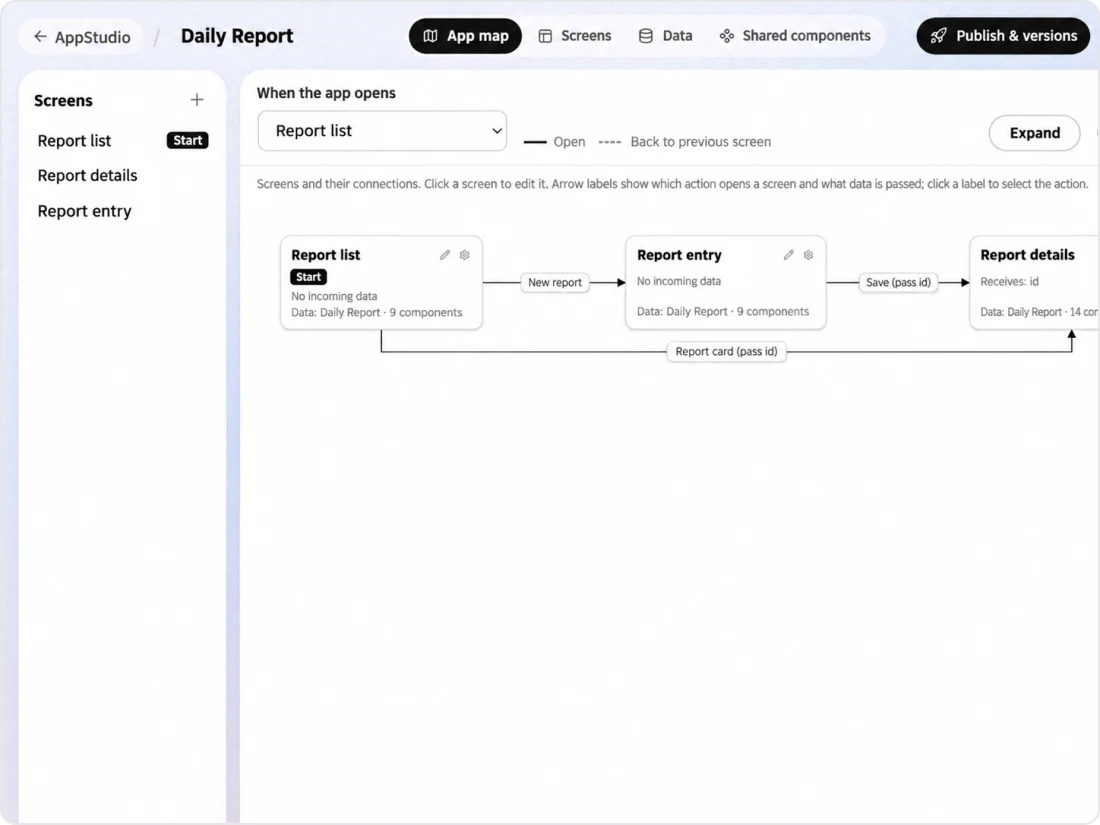
In AppStudio, you build business apps in this order: ask the AI agent, adjust on the canvas, check how it works, and run the pre-publish check. Each app consists of several screens and the connections between them (the app map).
Ask the AI agent
Ask the AI agent for the app you need, and it assembles the data, screens and connections between screens.
Settings without formulas
Set list filters and what happens when a button is pressed by making selections.
Pre-publish check
Checks for missing or broken data references; publishing is done by a user.
Main features
Ask AI Agent
Asking the AI agent and the app map
Ask the AI agent something like "I want to manage daily reports" to have it assembled
Create a new app by entering its name and description, then use [Build with the AI agent] to describe the app you need, and it assembles the data types, screens such as list, input and detail, and the connections between screens. The app map lists which button opens which screen.
Canvas
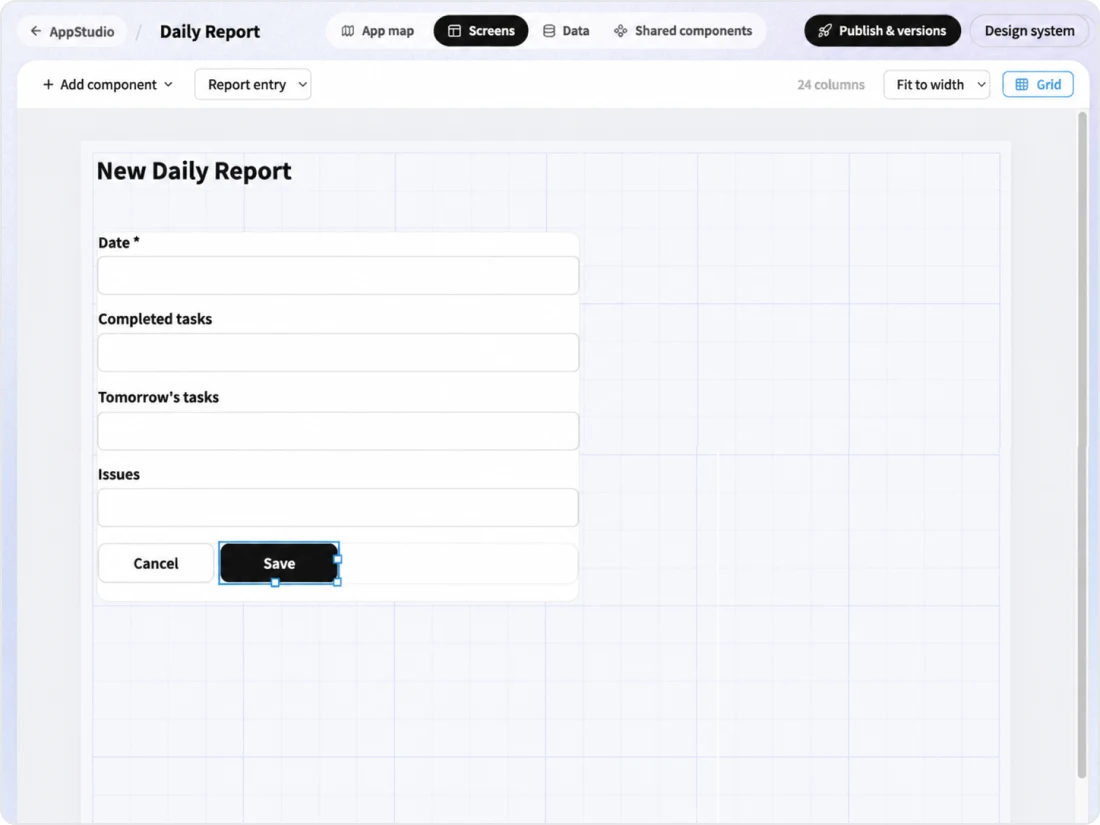
Adjust on the canvas
Adjust component layout and conditions by making selections
Place components on a grid for each screen; components line up without overlapping. For a button's "when pressed" action, choose things like opening another screen or saving the input. Check how it works with sample data in both PC and smartphone views.
Publish
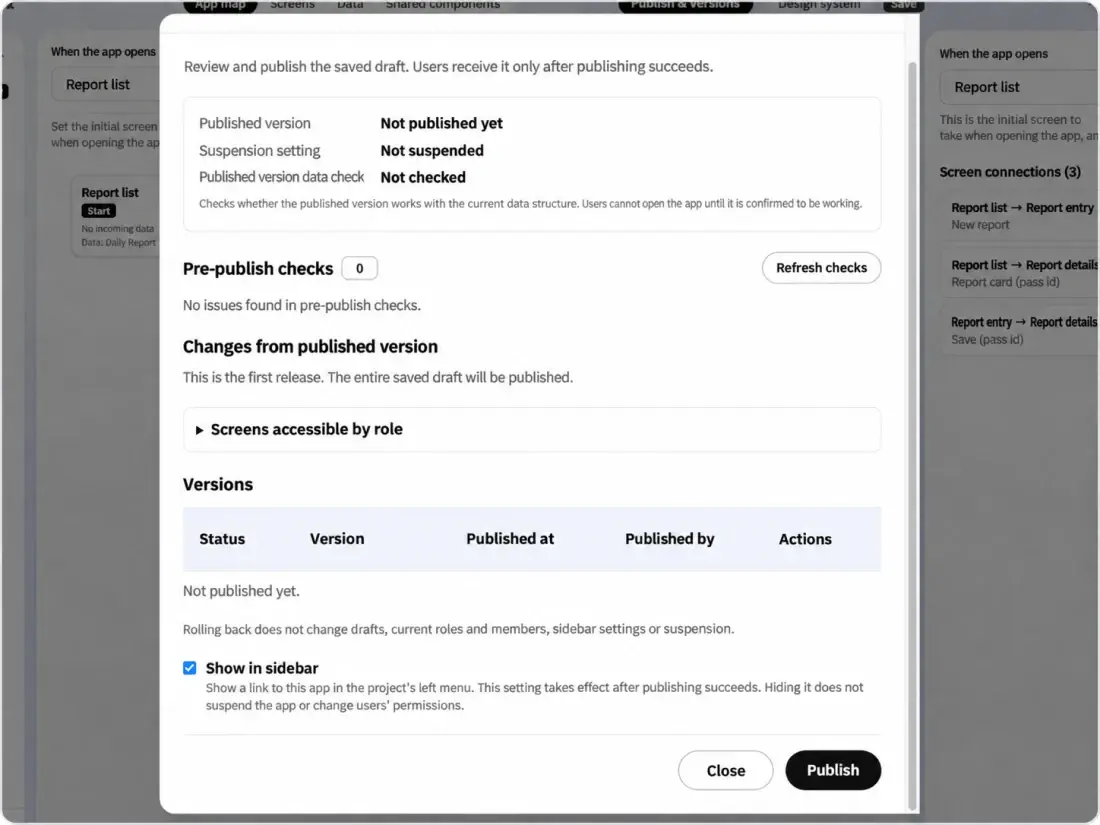
Pre-publish check and publishing
Checks for missing data passed between screens and references to deleted data
The pre-publish check looks for missing data passed between screens, references to deleted data, and screens not opened from any button. Publishing is done by a user, and changes to screens after publishing are not reflected for users until the next time you publish.
AI Agent
Building with the AI agent
Build app drafts in conversation
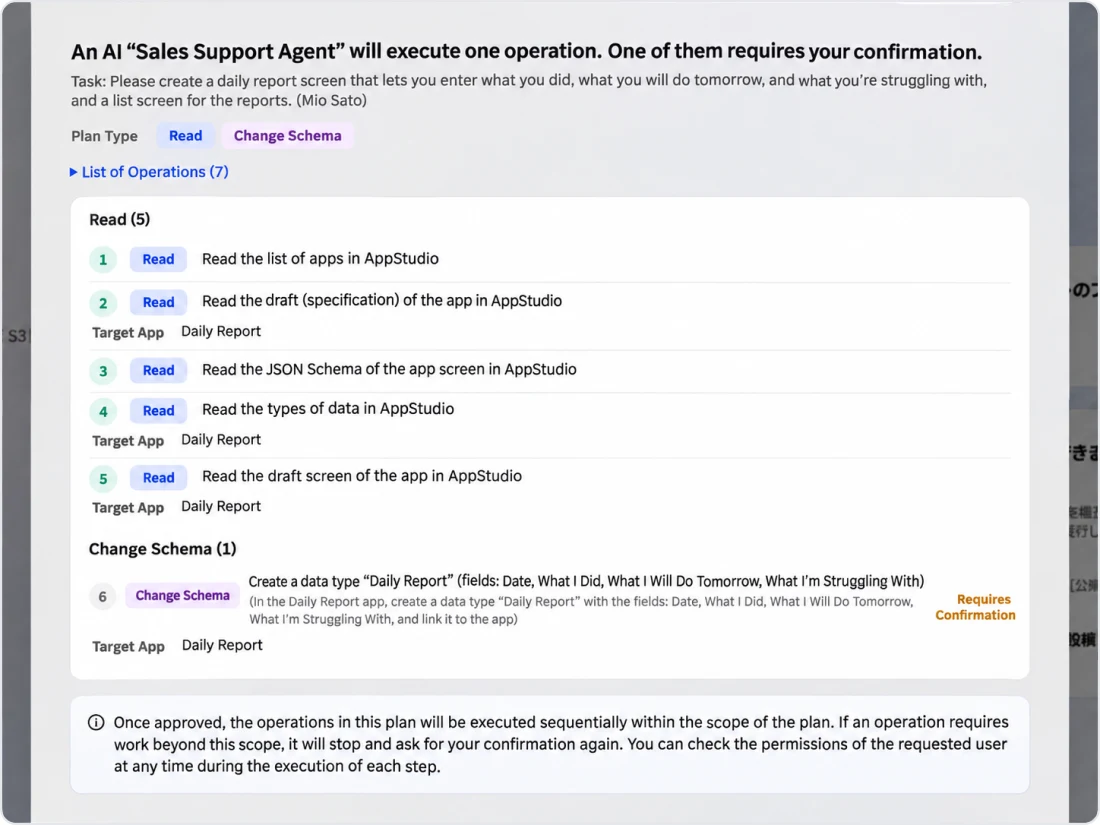
Build app drafts (screen components and buttons) in conversation with the AI agent. Actions that define fields run after the requesting user approves the plan. The AI agent does not publish apps.
Kanata — The Beyond, Made RealKanata — The Beyond, Made RealKanata — The Beyond, Made RealKanata — The Beyond, Made RealKanata — The Beyond, Made RealKanata — The Beyond, Made RealKanata — The Beyond, Made RealKanata — The Beyond, Made Real
Kanata — The Beyond, Made RealKanata — The Beyond, Made RealKanata — The Beyond, Made RealKanata — The Beyond, Made RealKanata — The Beyond, Made RealKanata — The Beyond, Made RealKanata — The Beyond, Made RealKanata — The Beyond, Made Real
FAQ
FAQ
QDoes AppStudio require programming?
No. Ask the AI agent for the app you need, and it assembles the data, screens and connections between screens. On the canvas, you adjust component layout and list filters by making selections, without writing formulas.
QCan apps built with AppStudio be used on smartphones?
Yes. Apps are built on a PC and can also be used on smartphones. On smartphones, component layout is adjusted to fit the screen width.
QWhere is app data saved?
It is saved as Library content. The data permissions set for each role in the app's permissions are applied to the permissions of the Library folder where the data is saved.
QCan we set daily reports so that only the author and their manager can view them in the app?
Yes. In app permissions, choose none, view or edit for each role, separately for "All members' data" and "Own data". For example, the manager role can view all members' daily reports, while the user role can edit only their own. Roles can be renamed and added. The permissions you set are also applied to the permissions of the folder holding the daily reports.
QCould the AI agent publish an app?
No. The AI agent only builds app drafts; publishing is done by a user.
QWhat happened to AppBuilder?
AppBuilder has become AppStudio in Kanata Studio. It is used together with the Library and AI Agent.
Start with the FREE plan and try Kanata on a single task. The more internal knowledge you store in the Library, the more information the AI can use as the basis for its answers.
We use cookies to improve our services and optimize your experience. Apart from essential cookies, analytics cookies are set only with your consent. For details, see our Cookie Policy.