Turn time spent making decks into time spent reviewing them.
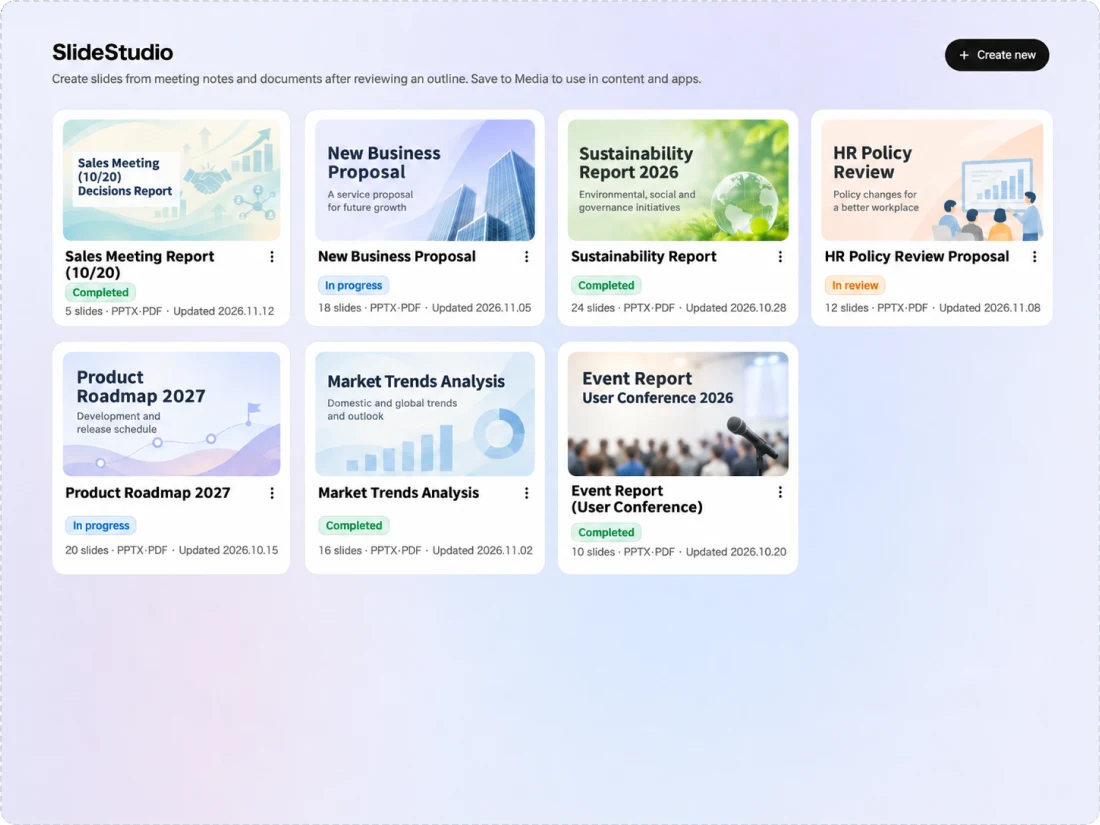
SlideStudio creates slides from meeting minutes and internal documents. You review an outline before the body is created, and slides that apply your Design System are output as PPTX or PDF. Each slide shows its source documents.
SlideStudio creates slides based on minutes and documents in the Library. Created slides are rendered and checked, and regenerated if there are problems. Finished slides are saved to Media with [Save] and shared with users who can view the folder.
01
What it covers
Creating slides based on minutes and internal documents, such as meeting reports, internal announcements, training materials and draft proposals
02
Best suited for
Organizations where creating reports and proposals takes time and formats and designs differ by person
03
What you can aim for
Spending the time you used to spend making decks on reviewing structure and content, and sharing documents with sources shown
Problem
Challenges organizations face in creating documents
Surveys show that creating documents and reports is among the main uses of AI, and that writing, summarizing and proofreading text is the most common task among companies using generative AI. Some companies also feel the gap widening between employees who can make good use of AI and those who cannot.
Share citing "creating documents and reports (internal and external)" as a use of AI
80.5%
The most common answer was "summarizing, translating and proofreading documents and audio" at 82.5%. The question was asked of companies that have adopted, are trialing or are considering AI.
Share of companies where the gap between employees who can make good use of AI and those who cannot has widened
18.8%
The share of companies using AI that answered "the gap in ability and results has widened between employees who can make good use of AI and those who cannot". Among large companies it was 23.6% (multiple answers allowed).
Creating meeting reports and proposals "takes a lot of time"
Document formats and designs "differ by person"
It is "hard to check the source" of numbers and names in slides made with generative AI
Finding minutes and documents and "entering them into an AI tool again takes effort"
Simply adopting a separate generative AI tool for slides can leave issues such as uploading internal documents every time, checking sources and keeping designs consistent. Referring to documents, creating and reviewing need to be connected on a single foundation.
Scenes
How SlideStudio is used
Examples of how department staff use SlideStudio. The video shows how to create a report from meeting minutes.
The companies and people shown are fictitious.
Scene 01
A meeting report
Planning staff
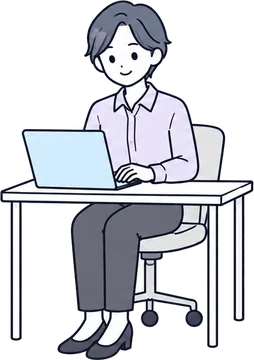
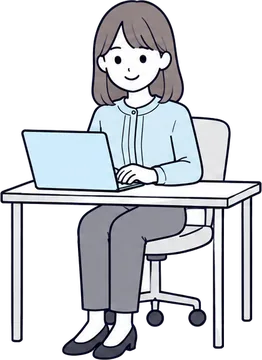
BeforeCreating a report from meeting minutes took a lot of time.
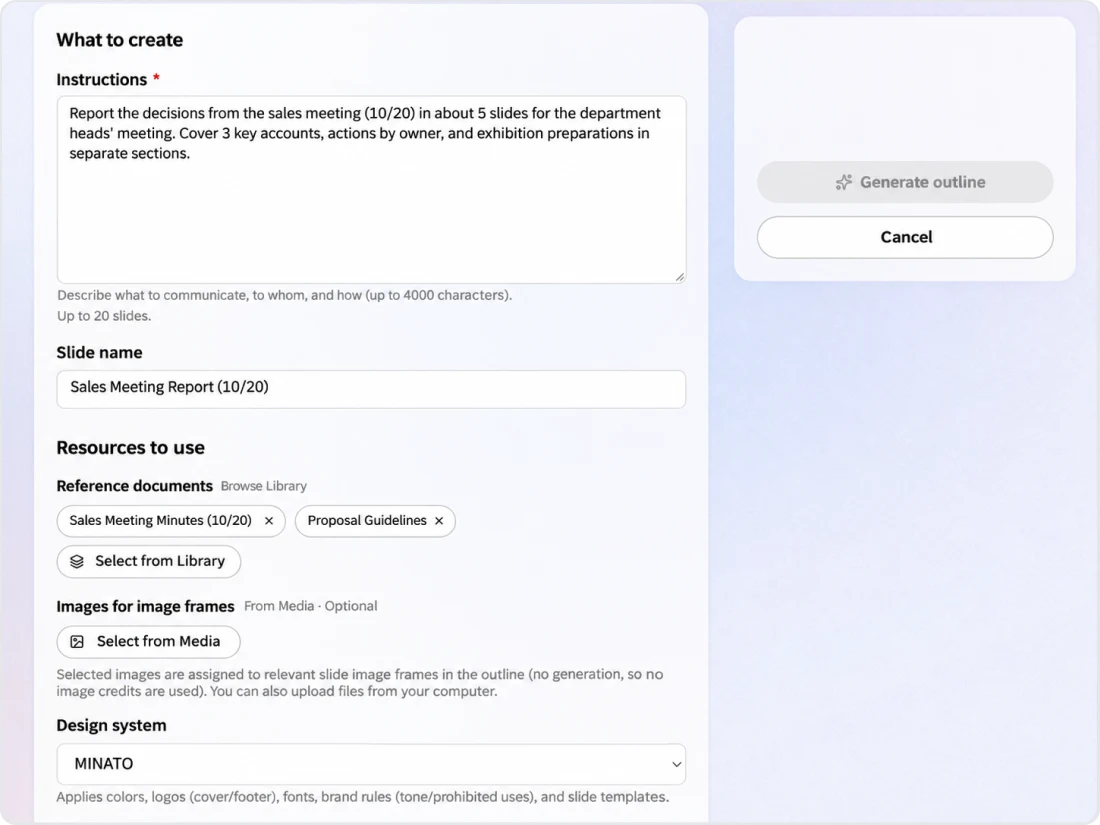
Create from minutesRefer to minutes in the Library without uploading them again.
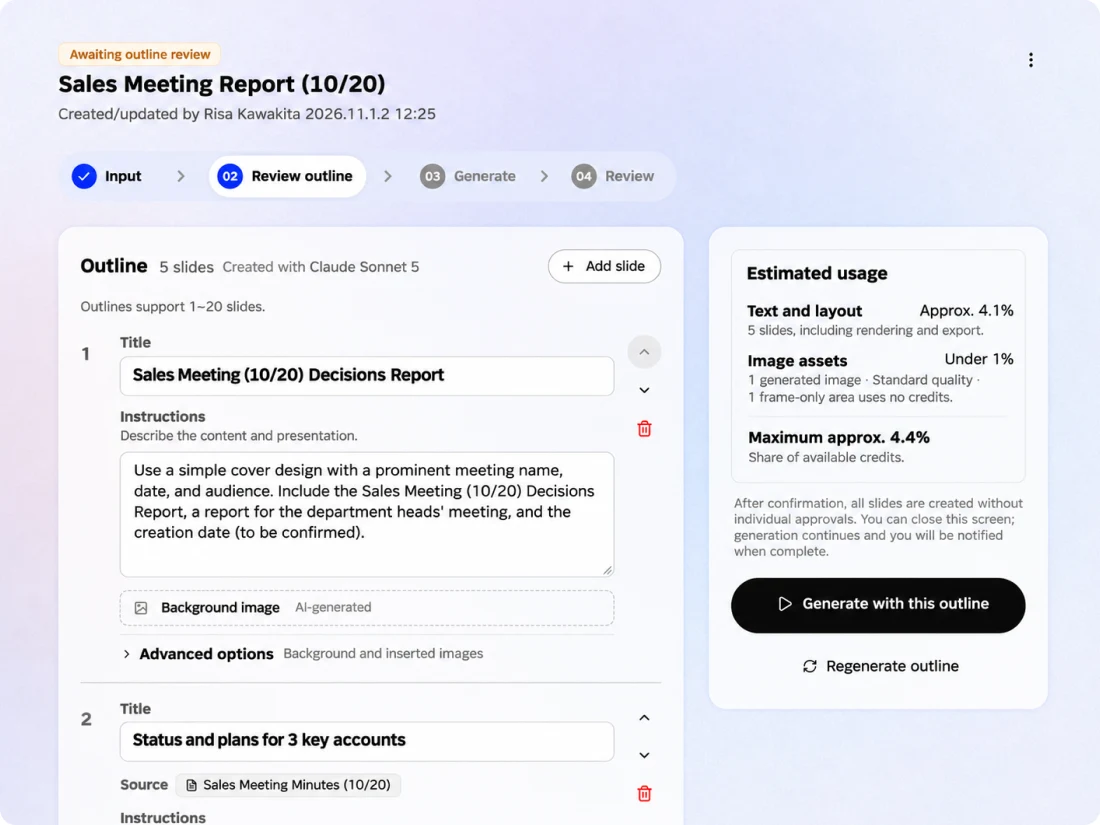
Review outlineReview the title, sources and instructions for each slide. After review, the deck is created in full without approving each slide.
Rendering and checksSlides are rendered and checked for overflow, overlap, text size and contrast.
With KanataTime spent making decks goes into reviewing structure and content. People check numbers and proper nouns before sharing.
These scenes are examples of use. The people shown are fictitious.
Platform
The advantages of being part of an AI platform for organizations
SlideStudio uses AI Recording minutes, Library documents, Media images and your Design System within a single project.
Create from minutes
Start creating by referring to minutes saved in the Library, without uploading them again.
Referring to Library documents
Choose reference documents from Library content you are allowed to view.
Media images and image frames
In the outline, AI decides how each image frame is handled ("Media image", "Generate image" or "Frame only"), and you can change this for each slide. If you prepare frames only, open the deck in PowerPoint and insert images later.
Choosing a Design System
Choose one Design System for each creation, the same one used by ImageStudio, and the version used is recorded.
Requests from the AI agent
AI agents permitted through execution permissions create outlines in response to requests in chat. Depending on the autonomy level, the requesting user reviews the plan before it runs.
Managing consumption with credits
The estimated consumption for the outline, the body and layout, and each image is shown before you create.
Features
SlideStudio features
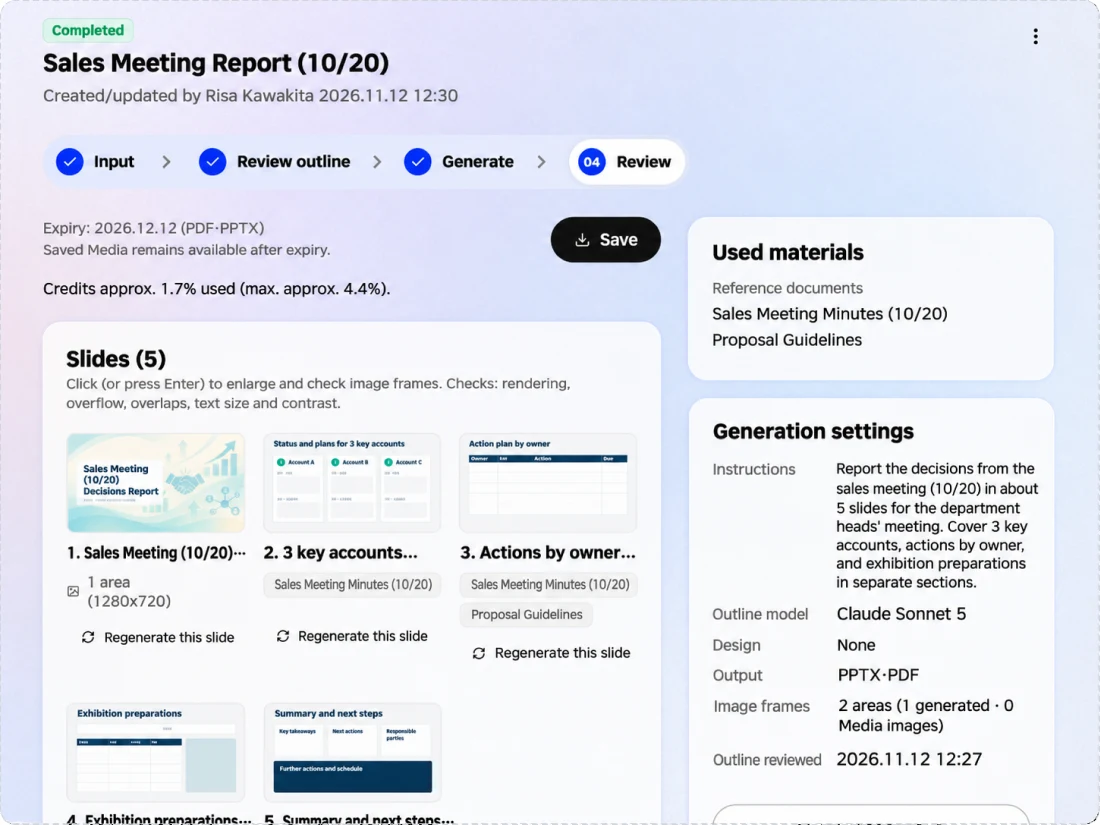
In SlideStudio, you create slides in the order "input → review outline → create → review → save". Before the body and layout are created, you check the number of slides and their content in the outline.
Create from documents and minutes
Create slides from instructions (up to 4,000 characters), referring to Library documents.
Review outline
Before the body is created, review the number of slides, titles, instructions and how images are handled.
Rendering and checks
Checks for overflow, overlap, text size and contrast.
Main features
Decide
Instructions and reference documents
Describe what to convey, to whom and how in the instructions
Instructions can be up to 4,000 characters. Choose reference documents from the Library. Choose the AI model that creates the outline and the output format (PPTX, PDF), and proceed after checking the estimated consumption for the outline, the body and layout, and images.
Outline
Review outline
Review the title, sources and instructions for each slide
In the outline, review each slide's title, source documents and instructions, and add slides or revise instructions. When creating the outline, AI decides how each image frame is handled ("Media image", "Generate image" or "Frame only"), and you can change this for each slide. After review, the deck is created in full without approving each slide, and you get a notification when it is done.
Check
Rendering, checks and single-slide regeneration
Review the finished slides one by one
Created slides are rendered and checked for overflow, overlap, text size and contrast, and slides with problems are regenerated. Each slide shows its source documents. You can also regenerate just one slide.
Save
Saving and sharing PPTX and PDF
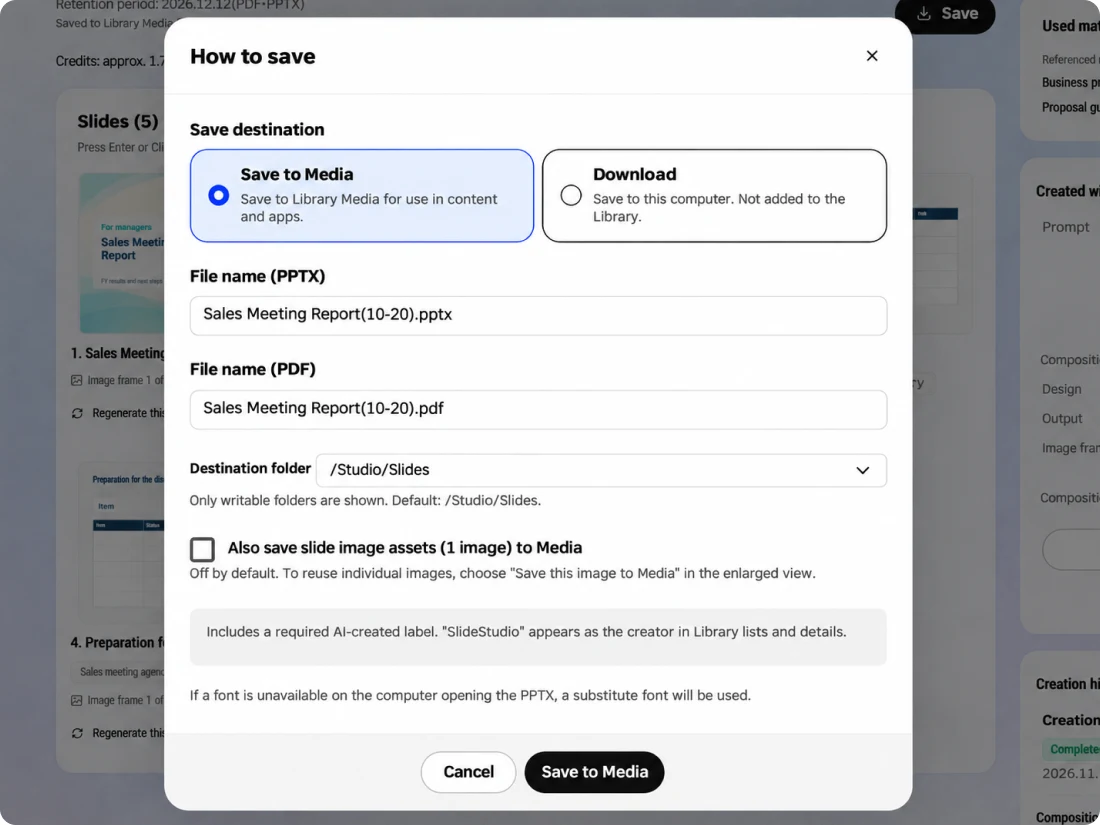
Save to Media and share with folder permissions
Press [Save] to save the finished slides to Media as PPTX or PDF; they show the source "SlideStudio" in the Library. Saved slides are shared with users who can view the folder.
Kanata — The Beyond, Made RealKanata — The Beyond, Made RealKanata — The Beyond, Made RealKanata — The Beyond, Made RealKanata — The Beyond, Made RealKanata — The Beyond, Made RealKanata — The Beyond, Made RealKanata — The Beyond, Made Real
Kanata — The Beyond, Made RealKanata — The Beyond, Made RealKanata — The Beyond, Made RealKanata — The Beyond, Made RealKanata — The Beyond, Made RealKanata — The Beyond, Made RealKanata — The Beyond, Made RealKanata — The Beyond, Made Real
FAQ
FAQ
QWhich formats can SlideStudio output?
PPTX and PDF. You can also choose both. Open PPTX files in PowerPoint to edit them.
QWhich documents can be referred to?
Choose documents you are allowed to view, such as minutes and documents in the Library.
QCould numbers not in the documents appear?
Yes, they can. The outline and body are created from the documents, but please have a person check numbers and proper nouns before saving or sharing.
QIs it OK to close the screen during creation?
Yes. Once you review the outline and start creation, it continues even if you close the screen, and you are notified when it is done.
QDoes creation consume credits?
Yes. The outline consumes credits when you press [Create outline], and the body, layout and images consume credits when you review the outline and start creation. Frames filled with Media images and frames-only slides do not consume image credits.
Start with the FREE plan and try Kanata on a single task. The more internal knowledge you store in the Library, the more information the AI can use as the basis for its answers.
We use cookies to improve our services and optimize your experience. Apart from essential cookies, analytics cookies are set only with your consent. For details, see our Cookie Policy.