AI and RAG
Before AI composes an answer, RAG provides the basis from your internal knowledge.
RAG (retrieval-augmented generation) is a mechanism in which AI searches your internal documents before answering and is given what it finds as the basis for its answer. In Kanata, internal knowledge produced in your work, such as meeting minutes and training materials, is saved to the Library and managed with folders and viewing permissions. The AI agent answers and carries out work based on documents in the Library.
Video: AI and RAG
An introduction to how RAG works, why internal RAG projects fail, and how to build RAG in Kanata.
Roles
How AI and RAG relate
Generative AI answers with general knowledge up to the time it was trained. It does not know your internal policies or the decisions made in last week's meeting. RAG (retrieval-augmented generation) is a mechanism in which AI searches your internal documents before answering and is given what it finds as the basis for its answer. Here are the roles of AI and RAG, and how Kanata handles each.
| Element | Role | In Kanata |
|---|---|---|
| AI model (generative AI) | Understands questions and composes answers and text | Choose from GPT, Claude and Gemini |
| RAG (retrieval-augmented generation) | Searches internal documents and provides what it finds to AI as the basis | Refers to internal knowledge stored in the Library, within permissions |
| Internal knowledge | The information that answers and work are based on | Meeting minutes, training materials, internal policies and documents stored in the Library |
Generative AI alone vs. combined with RAG
| Item | Generative AI alone | Combined with RAG |
|---|---|---|
| Basis for answers | General knowledge up to the time of training | Internal documents and general knowledge |
| Latest internal information | Not reflected | Reflected when documents are updated, without retraining the model |
| Showing sources | Difficult | Can show the names of documents referred to |
| Model retraining | — | Not needed |
Why it fails
Three reasons internal RAG fails
Scattered documents and outdated versions mixed in
AI may answer based on outdated information.
Poorly designed viewing permissions
Content from documents the user is not allowed to view may appear in answers.
No mechanism for improvement
Answer quality does not improve, and people stop using it.
Kanata addresses these issues with version and source management in the Library, permissions by project and folder, and a mechanism that accumulates minutes and AI-created documents in the Library.
How it works
How RAG is built in Kanata
Your internal knowledge becomes a database that works with AI automatically.
Internal knowledge produced in your work, such as meeting minutes and training materials, accumulates in the Library, and you set the reference folders and AI model for each AI agent. You review the results of answers and actions, and update or add documents.
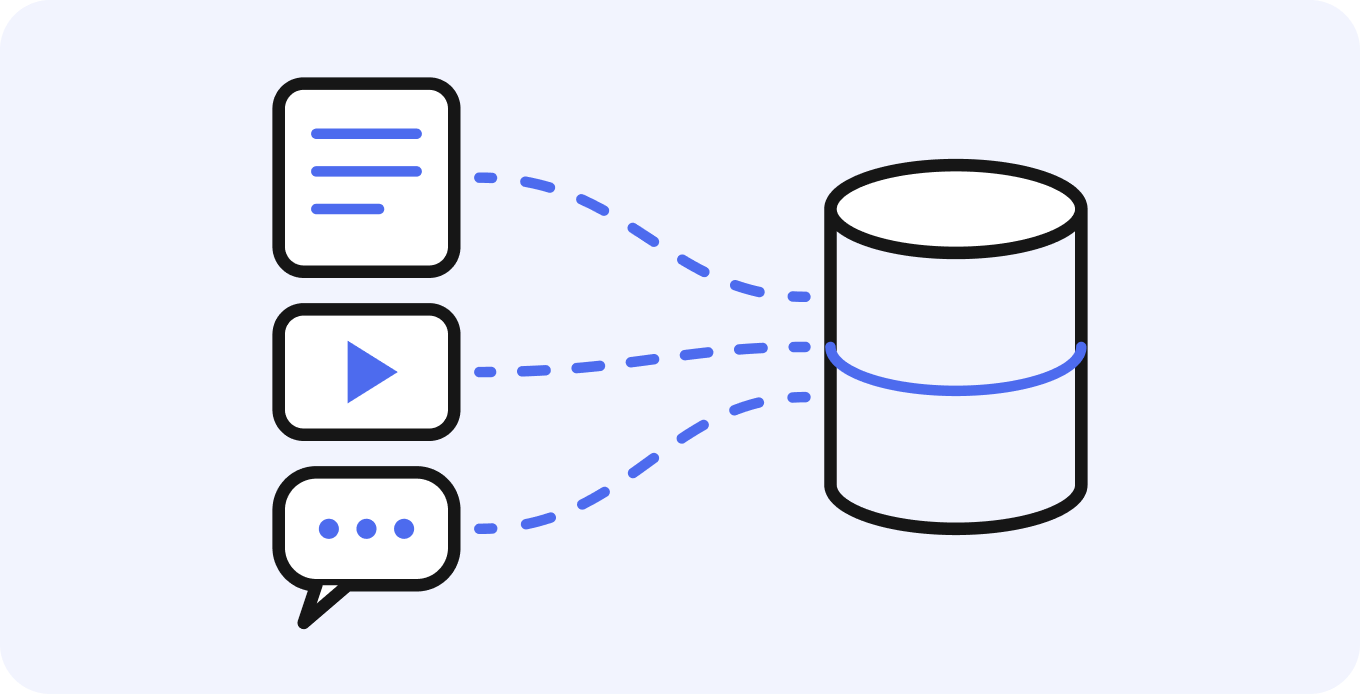
01
Collect and organize data
Collect & Organize
AI Recording minutes, e-Learning materials and AppStudio app data are saved to the Library as part of everyday work. Internal policies and procedures are created as documents and managed with per-folder viewing permissions and versions.
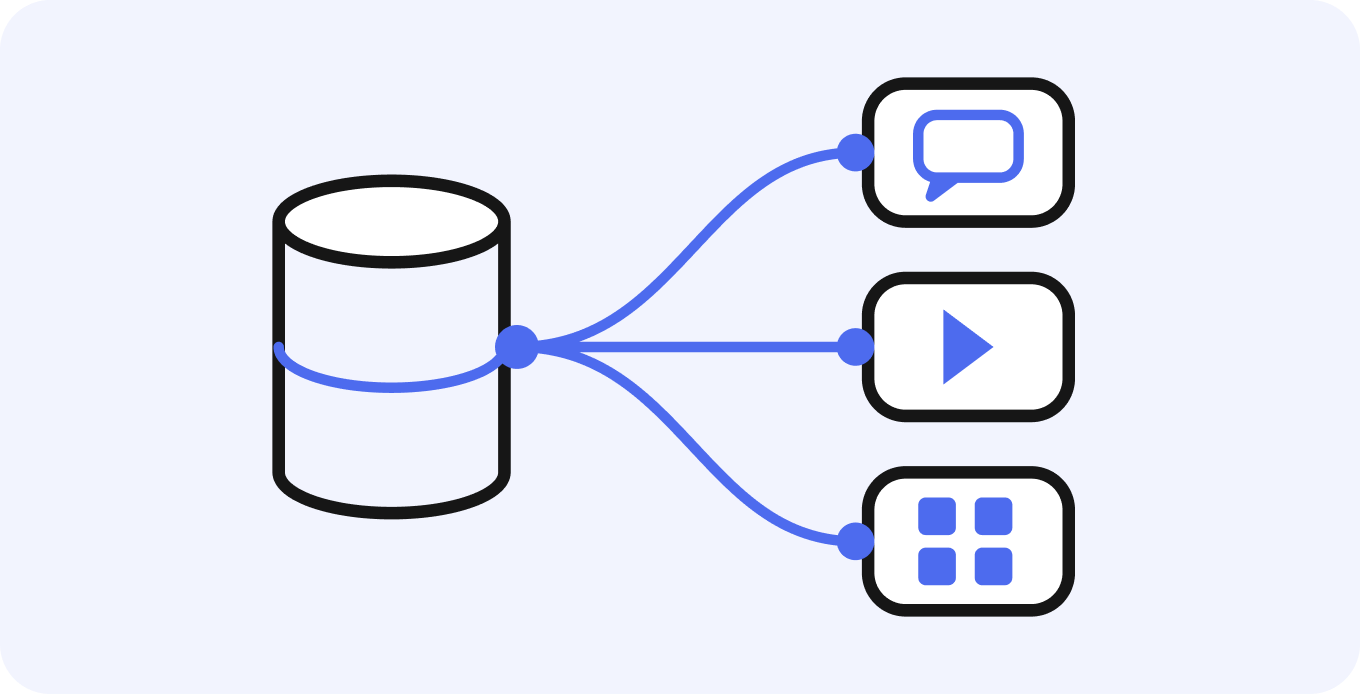
02
Connect apps and AI
Connect Apps & AI
When you set the folders each AI agent refers to, the content in those folders becomes candidate sources. The AI agent answers by referring to documents within the user's viewing permissions, and operates the apps and Studio features allowed in its execution permissions after the plan is reviewed according to the autonomy level.
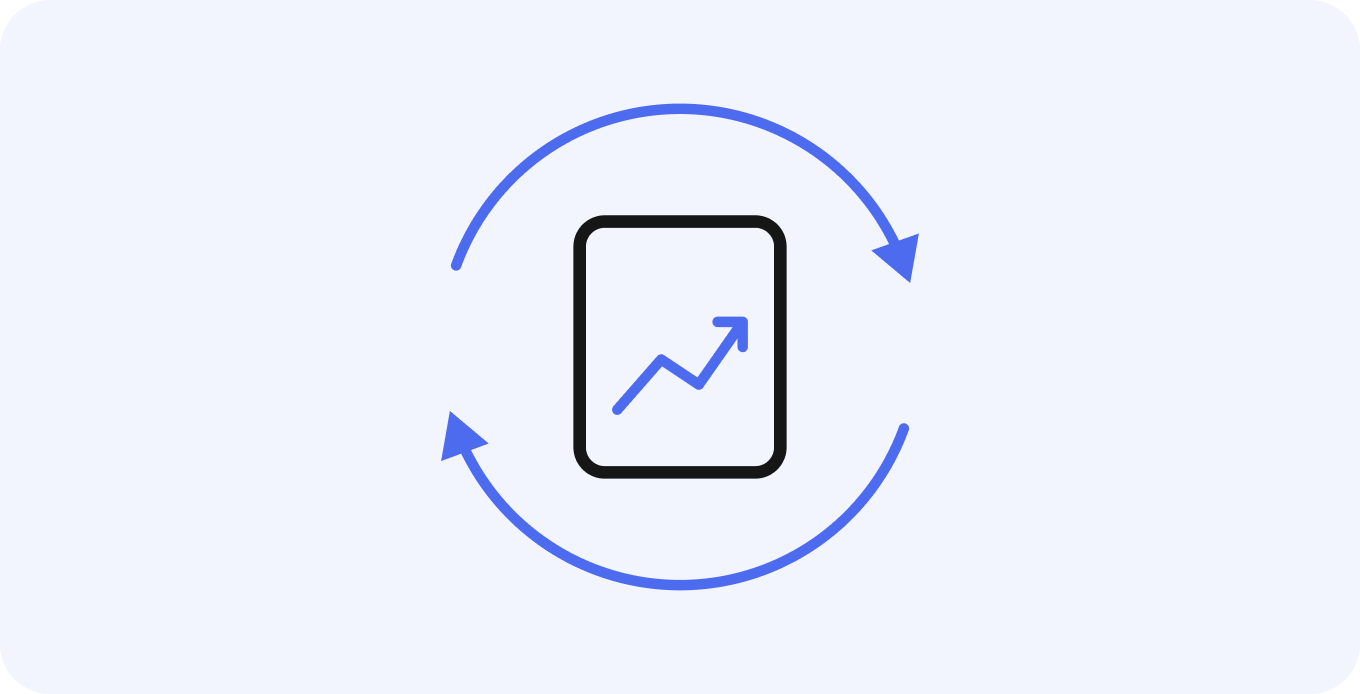
03
Improve data
Improve
Check answers and sources against frequently asked internal questions, then update outdated documents and add missing ones. Minutes and documents created by the AI agent also accumulate in the Library.
Results of use become the basis for the next answer
How to build
How to build it in Kanata
The steps to create an assistant with an AI agent that answers based on internal knowledge. It can be built with on-screen settings, without database design or programming.
- Register documents
Create documents in the Library to register your materials. Meeting records are registered from AI Recording, and training content from e-Learning. - Organize and set permissions
Organize documents in folders and set who can view them. Internal policies can be version-controlled as documents made up of a cover, categories and pages. - Create an AI agent
Create an AI agent and set its name, icon and custom instructions describing its role and answering style. - Set reference scope and execution permissions
Set the reference folders, execution permissions (research only, up to creating documents, up to operating apps), autonomy level and the model to use. - Check and improve answers
Ask frequently asked internal questions in chat and check the answers. Update outdated documents, and keep accumulating minutes and AI-created documents in the Library.
Reference scope
Setting the reference scope
Set for each AI agent what AI may base its answers on.
| Setting | Task | Where to set it |
|---|---|---|
| Reference folders | The folders the AI agent refers to as a basis. All content in those folders is a candidate, so there is no need to select files one by one | AI agent settings |
| Viewing permissions | Uses as a basis only documents the user in the conversation is allowed to view | Folder permissions |
| Web search | Reads external pages. Choose whether to use it for each agent | AI agent execution permissions |
| Custom instructions | Specify how to respond to questions not covered by the documents, and what it should not answer (prohibited topics) (up to 8,000 characters) | AI agent settings |
Settings
AI agent settings
For each AI agent, describe its role and answering style in custom instructions, and set its reference folders and execution permissions. You can create agents for each department, such as an "admin help desk" or "sales support", and share them in the project.
| Setting | What you can set |
|---|---|
| Name and icon | The agent's name and icon (a combination of a picture and a background color) |
| Custom instructions | Describe its role, answering style and rules to follow in a single text (up to 8,000 characters). For example: "Answer as the guide for internal training", "Always show the source documents", "Do not answer questions about performance reviews" |
| Reference folders | The folders referred to as a basis. Only what the requesting user can view is used |
| Execution permissions | Research only, up to creating documents, up to operating apps, or detailed settings per tool |
| Autonomy level | Suggest only, review the plan and run, or run automatically (only project admins can choose automatic execution) |
| Models | The default model in chat and the models available |
Register frequently used instructions as prompts in the Library and share them in the project.
Data
Data you can bring in
| Type | Examples | How it is registered in the Library |
|---|---|---|
| Documents | Internal policies, manuals, FAQs | Create as documents |
| Meeting | Zoom, Google Meet and Microsoft Teams recordings, minutes | Created by AI Recording |
| Training | Training videos and materials | Created in e-Learning |
| App data | Records such as daily reports and deal management | Entered in apps built with AppStudio |
File types and size limits differ by feature (for example, e-Learning videos up to 2 GB).
Tips
Operational tips for improving RAG accuracy
Security
Security and permissions
- We do not use your input data to train AI models.
- Which documents can be viewed and the scope AI refers to are separated by project, app and folder.
- The AI agent uses as its basis only documents the user in the conversation is allowed to view.
- The ENTERPRISE plan supports a security assessment at onboarding.
Use cases
Where RAG is used
HR and admin inquiries
Gives first-line answers based on work rules and internal policies; questions without a basis are handled by staff.
IT procedure guidance
Guides users through setup and request procedures based on each system's procedure manual.
Preparing sales proposals
Organizes the outline and points to confirm for a proposal from past proposal documents and sales meeting minutes.
Customer support
Drafts answers based on FAQs and product documents, which staff review before sending.
FAQ
FAQ
QWhat is the difference between generative AI and RAG?
Generative AI (large language models) is AI that understands questions and composes answers and text. RAG is a mechanism in which AI searches internal documents before answering and is given what it finds as the basis. In Kanata, RAG searches the internal knowledge stored in the Library within permissions, and the AI model you choose from GPT, Claude and Gemini answers based on it.
QWhat is the difference between RAG and fine-tuning?
Fine-tuning adds training to the AI model itself. RAG leaves the model as it is and searches internal documents at answer time to use as the basis. Because document updates are reflected in answers without retraining the model, and document names can be shown as sources, RAG is well suited to using internal knowledge. Kanata uses internal knowledge based on the RAG approach.
QCan we use our existing minutes and documents?
Yes. Existing materials can be created as documents and registered in the Library. Minutes created with AI Recording become a basis for the AI agent as they are.
QCan we separate which documents each department's agent refers to?
Set permissions by project and folder, and set the reference folders for each AI agent. For example, an HR agent can refer only to HR policies, and a sales agent only to proposal documents and minutes.
QWhich AI models are available?
You can choose from OpenAI's GPT, Anthropic's Claude and Google's Gemini. Even with the same agent, you can switch models per question in the DM input field, among the models allowed for that agent.
QIs it safe to register confidential documents?
Kanata does not use your input data to train AI models. Viewing permissions for documents and the scope AI refers to are separated by folder permissions and agent settings. For details, see Security.
Last updated: