Kanata Library
Manage internal knowledge as a database AI can refer to.
Store internal knowledge produced in your work, such as minutes, training, internal policies and documents, in Kanata Library so that AI can refer to it as the basis for its answers. As the foundation for RAG, it also records the source of each item and whether AI created it.
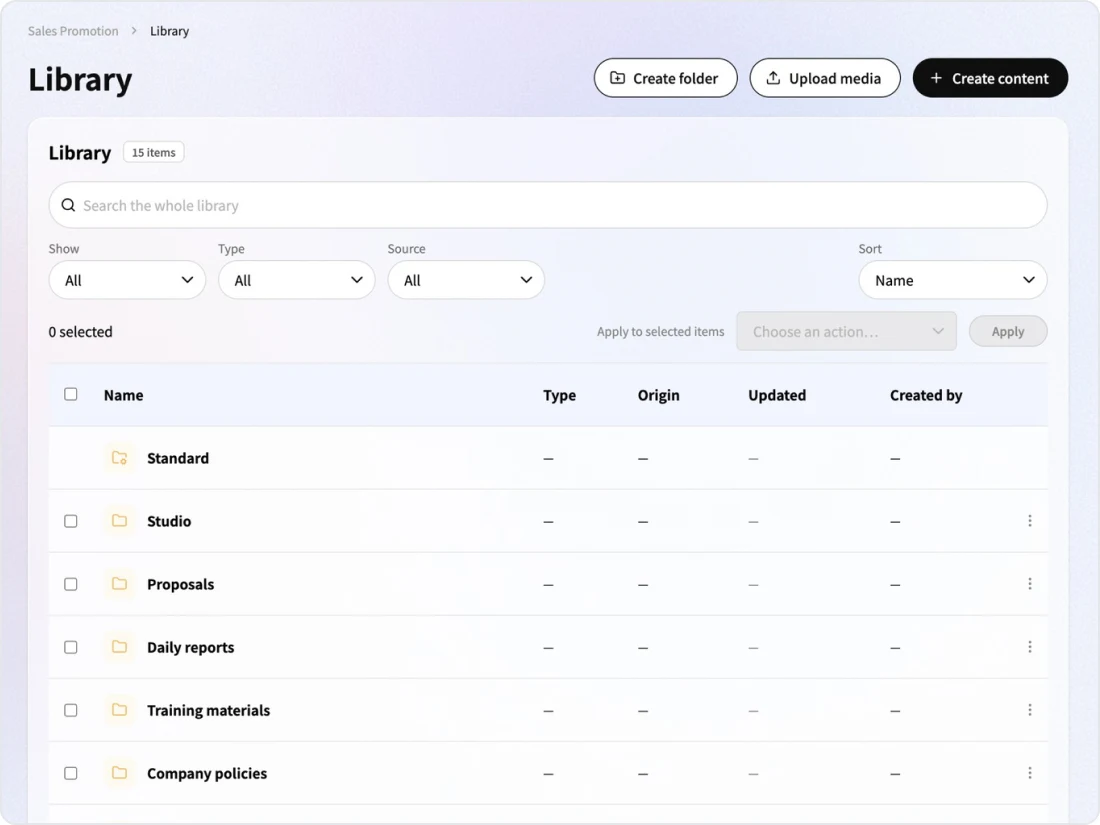
Video: Kanata Library
An introduction to the split between Content and Media, records of sources and versions, and permission settings.
RAG
Setting up RAG in the Library
Just save content to the Library and set the folders the AI agent refers to, and you can use RAG that answers based on your internal knowledge.
Content
Knowledge that AI refers to as a basis, such as documents, minutes and prompts. It is saved in folders, and folder permissions determine who can view it.
Reference folders
Choose the folders each AI agent refers to. All content in those folders becomes a candidate basis, so there is no need to select files one by one.
Prompts
Register frequently used instructions as prompts and share them in the project. AI Recording minutes templates are also managed as prompts.
Contents & Media
Content and Media
There is one rule for the split: what AI searches and refers to as a basis is Content, and what is handled as a file is Media. The input fields for Content are defined by content types.
| Category | Type | How it is created |
|---|---|---|
| ContentWhat AI searches and refers to as a basis | Document | Create guidelines and manuals with categories and pages |
| Minutes | Created by AI Recording | |
| Prompts | Register frequently used instructions. Minutes templates are also managed here | |
| Training materials | Body text of e-Learning lessons | |
| App types | Data from apps built with AppStudio | |
| Custom types | Created by defining input fields | |
| MediaWhat is handled as a file | Images | Upload / created in ImageStudio |
| Video and audio | Upload / AI Recording / e-Learning | |
| PDFs and slides | Upload / created in SlideStudio |
Origin
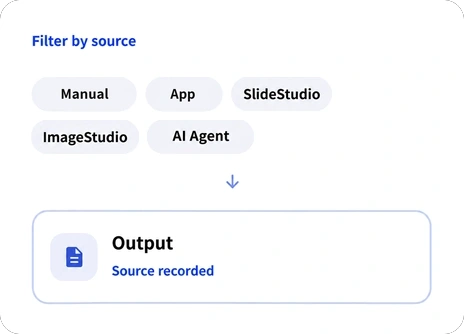
Source records
As outputs from Studio and documents created by AI agents grow, you need to filter by who created something and where. The Library records the source of each output.
- SourceManual, app, SlideStudio, ImageStudio, AI agent
Documents
Documents
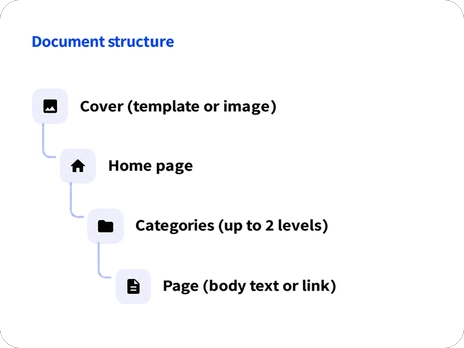
Internal policies and guidelines are managed as documents made up of a cover, a top page, categories (up to two levels) and pages. They are built from blocks such as headings, body text, tables and images, and a version is recorded each time you publish.
- Version control per documentEditing different pages at the same time does not conflict
- Referred to by the AI agentAnswers based on the document's body text
- Share published versionsThe published version is shown to members who can view it under the folder permissions
Access
Folder permissions
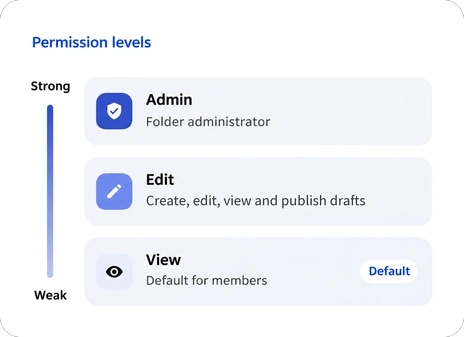
For each folder, set which users have view, edit and manage permissions. A folder can inherit permissions from the folder above or have its own. Members can view by default; to create or edit, grant edit permission per folder.
- Same permissions for AI and searchAI sources, search and media are filtered by the same permissions
- Hidden without permissionNot shown in lists, and not shown even if the URL is opened
- Drafts until publishedDrafts are visible only to users with edit permission or higher. Publishing does not mean publishing to the internet; it means showing the item to users who can view the folder
FAQ
FAQ
QHow should we use Content and Media?
What AI searches and refers to as a basis is Content, and what is handled as a file is Media. It is fine for something to span both, just as a single meeting has both a recording (Media) and minutes (Content).
QCan we tell what AI created?
Yes. For each version of an output, the Library records its source (manual, app, SlideStudio, ImageStudio, AI agent). The source of each version remains even after a user edits it.
QCan we set who can view what?
Permissions can be set by project and folder. Members can view by default, and only members granted edit permission for a folder can create and edit. Drafts that have not been published yet can be viewed only by members with edit permission or higher. The scope the AI agent refers to is determined by both the folder permissions and the folders the agent refers to.
QWhat happened to AI Summary?
The AI Summary app will be discontinued in the new version.
Last updated: