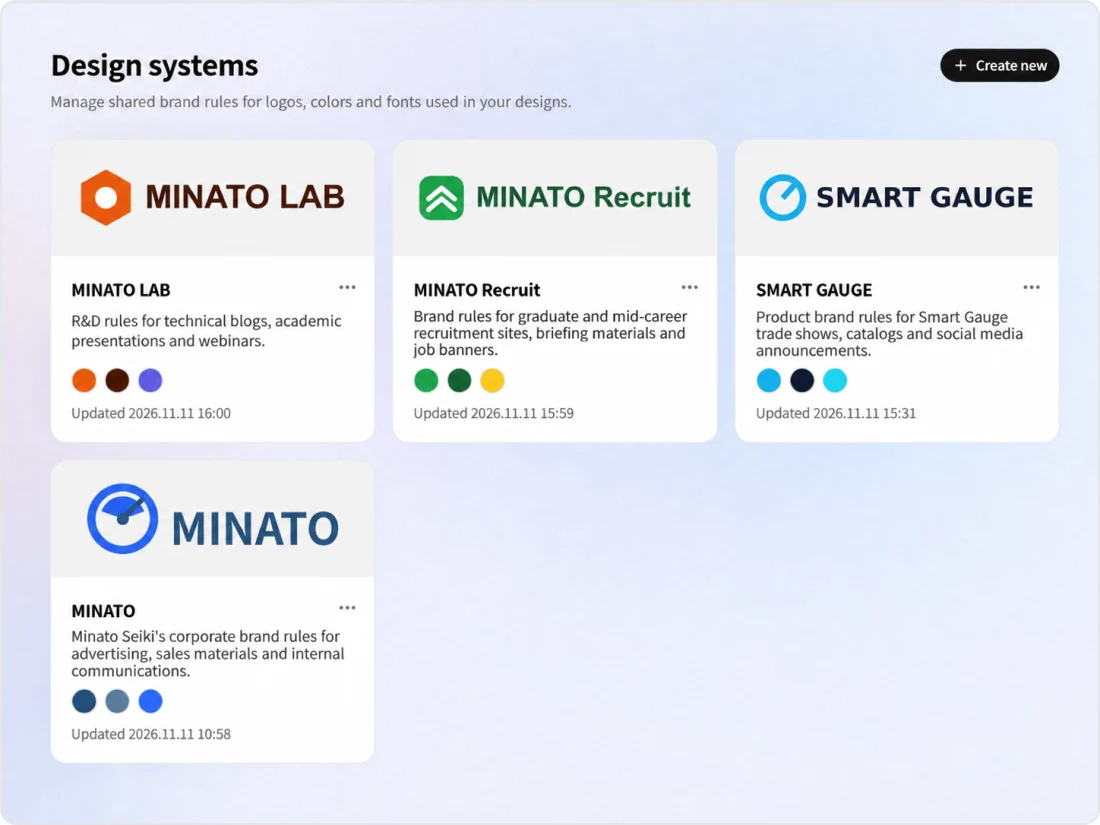
Design System lets you register your brand rules in seven items: brand promise, logo, colors, fonts, corner radius, borders and shadows. Choose one when creating in ImageStudio or SlideStudio, and its settings are applied to the creation. Create several within a project, and manage versions as Library content.
As more departments and people create images and slides with generative AI, you need a way for everyone to share your brand rules. Rules registered in Design System are chosen and applied each time you create in Studio, and each output records the version of the Design System used.
01
What it covers
Registering brand promise, logo, colors, fonts, corner radius, borders and shadows, and managing Design Systems for each brand or purpose
02
Best suited for
Organizations that want consistent brand expression while multiple departments and people create images and slides
03
What you can aim for
Reducing the effort of checking and fixing brand rules, and spreading AI-created outputs that follow the rules across the organization
Problem
Challenges organizations face in managing their brand
Surveys show that some companies have AI usage guidelines in each department without a unified company-wide policy, and some cite creating rules and standards to manage use as a challenge. Even among those that set policies and guidelines, only some go on to evaluate and verify after adoption.
Share of companies with AI usage guidelines in each department but no unified company-wide policy
15.3%
36.3% of companies had a company-wide policy, guidelines or code of ethics, and 8.8% answered "AI use is left to each department, with no company-wide control" (399 responses).
Share citing "it is difficult to create rules and standards to manage appropriate use" as a challenge in adopting and operating AI
39.7%
The most common answer was "lack of specialist talent" at 50.1%, followed by "insufficient understanding of the effects and risks of generative AI" at 45.8%.
Even with brand guidelines, they are "not referred to each time something is created"
"Logo and color usage differs" by department and person
It is "hard to check whether images and slides made with generative AI follow the brand"
Even when rules are revised, "no one knows which outputs reflect them"
Distributing guidelines as documents does not ensure they are referred to every time something is created. Brand rules need to be built into the creation process itself.
Scenes
How Design System is used
Examples of how departments use Design System. The video shows how to make logos and colors consistent across each department's outputs.
The companies and people shown are fictitious.
Scene 01
Outputs across departments
Admin staff
BeforeEach department created its own images and slides, and logo and color usage differed.
Register the brandRegister your brand promise, logo, colors, fonts and more in Design System.
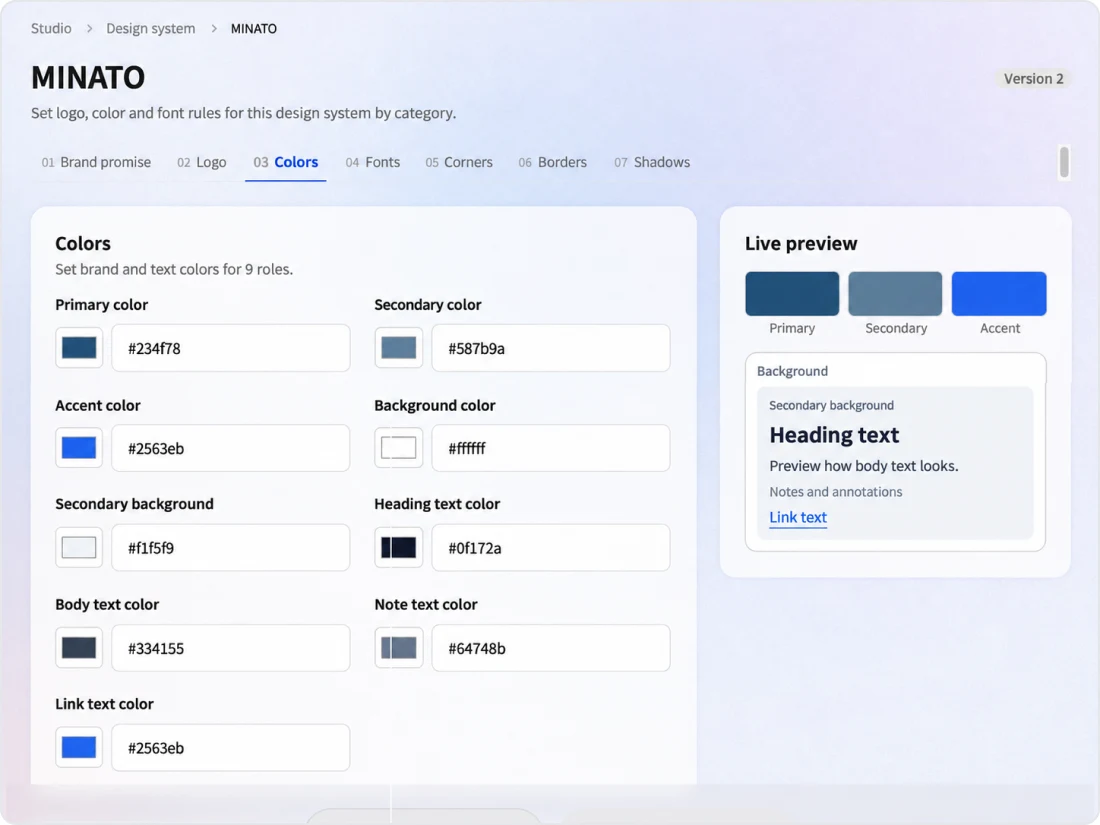
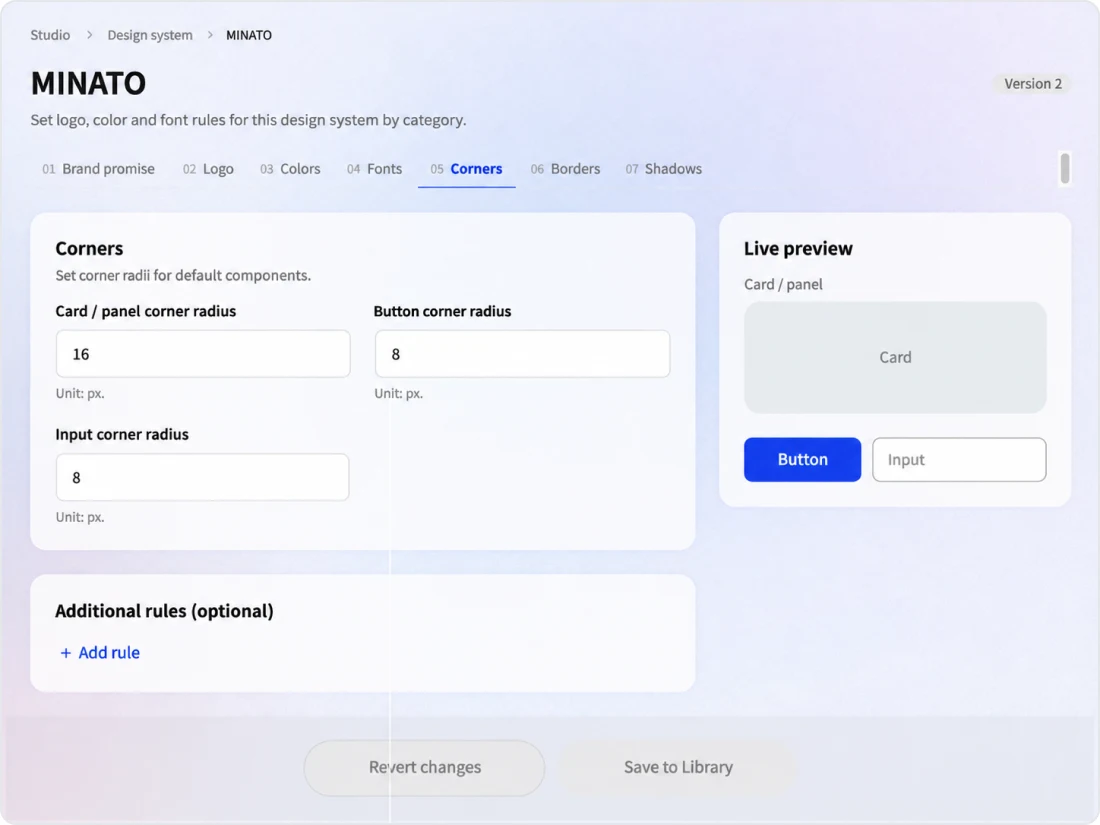
Check with previewsFor colors, corner radius, borders and shadows, check the appearance in each tab's preview before saving.
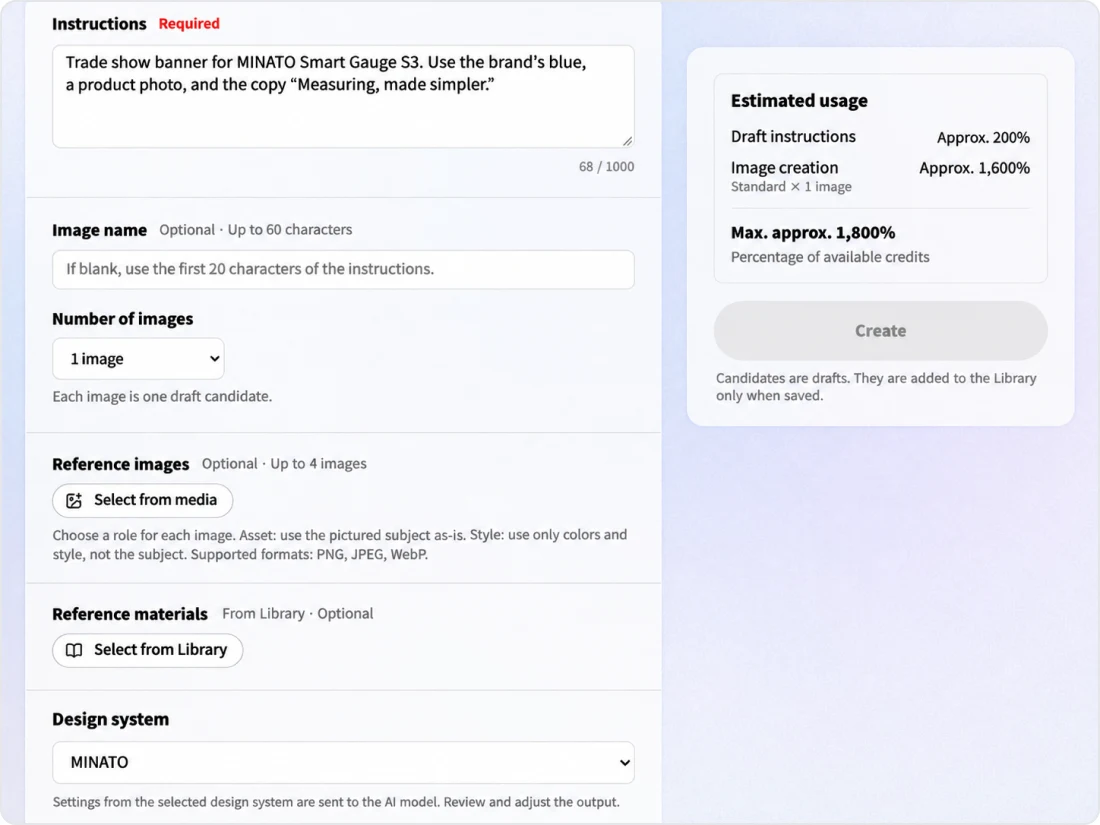
Create in each departmentEach department chooses the same Design System when creating in ImageStudio and SlideStudio.
With KanataEvery department in the same project creates images and slides with the same Design System.
BeforeEven when rules were revised, no one knew which outputs reflected them.
Edit the Design SystemMembers with edit permission edit and save the design rules, creating a new version.
Fixing the rules at creationCreation uses a copy of the Design System taken when the creation starts, so revisions made during creation do not affect it.
Check outputsOn the ImageStudio review screen, check the Design System version used for the creation.
With KanataThe Design System version used is recorded for each creation.
These scenes are examples of use. The people shown are fictitious.
Platform
The advantages of being part of an AI platform for organizations
Design System is built into Kanata's Studio and Library. Brand rules are managed as settings for AI creation.
Choosing in Studio
In ImageStudio and SlideStudio, choose one Design System for each creation and apply its settings.
Multiple Design Systems
Create several for different brands or purposes, and save each one separately.
Manage in the Library
Design Systems are managed as Library content, and you can check the saved values item by item. Logo images are saved to Media.
Fixing the rules at creation
A version is recorded each time you save.
Overlaying the logo
In ImageStudio, the logo is not drawn by the image AI; the registered logo is overlaid after creation.
Rules for using the logo
Register the logo's minimum size and clear space. In ImageStudio, the logo is not drawn by the image AI; the registered image is overlaid after creation.
Features
Design System features
In Design System, you set seven design rules, check them with previews and save. Saved Design Systems are chosen for each creation in ImageStudio and SlideStudio.
Seven design rules
Set brand promise, logo, colors, fonts, corner radius, borders and shadows.
Live preview
See changes to settings right away in each tab's preview.
Choosing in Studio
Choose one for each creation, and the version used is recorded.
Main features
Rules
Seven design rules
Set each item, from brand promise to shadows
Switch between tabs to set brand promise (tone, prohibited items), logo, colors, fonts, corner radius, borders and shadows. Colors are specified in nine roles: primary, secondary, accent, background and second background, plus text colors for headings, body, captions and links. For fonts, search for and choose Japanese and Latin typefaces for headings, body and notes.
Preview
Live preview
See changes to settings right away in the preview
Settings for colors, corner radius, borders and shadows are reflected right away in each tab's preview. Shadows reflect direction, blur and spread in the preview. Both the image logo and the SVG logo are shown.
Studios
Choosing and recording in Studio
Choose one for each creation and record the version
In ImageStudio and SlideStudio, choose one Design System for each creation. The chosen settings are used as a copy taken at the time of creation, and the Design System and version are recorded for each creation.
Scope
Design rule items
The seven items set in Design System and what each covers.
Item
What you set
Brand promise
Your brand's tone and prohibited items, described in writing
Logo
Image logo and SVG logo. Minimum size and clear space are specified in writing
Colors
Nine roles: primary, secondary, accent, background and second background, plus text colors for headings, body, captions and links
Fonts
Japanese and Latin typefaces for headings, body and notes
Corner radius
Corner radius for cards and panels, and for buttons and inputs
Borders
Border width, color and style (solid, dashed, dotted)
Shadows
Shadow color, opacity, direction, blur and spread
You can also add optional additional rules in writing for colors, fonts, corner radius, borders and shadows. Text size, line spacing, spacing and alignment are not set; Kanata's defaults are the base, adjusted when editing each output.
Kanata — The Beyond, Made RealKanata — The Beyond, Made RealKanata — The Beyond, Made RealKanata — The Beyond, Made RealKanata — The Beyond, Made RealKanata — The Beyond, Made RealKanata — The Beyond, Made RealKanata — The Beyond, Made Real
Kanata — The Beyond, Made RealKanata — The Beyond, Made RealKanata — The Beyond, Made RealKanata — The Beyond, Made RealKanata — The Beyond, Made RealKanata — The Beyond, Made RealKanata — The Beyond, Made RealKanata — The Beyond, Made Real
FAQ
FAQ
QWhat do we register in Design System?
Register seven items: brand promise (tone, prohibited items), logo, colors, fonts, corner radius, borders and shadows. Text size, line spacing, spacing and alignment are not set; Kanata's defaults are the base, adjusted when editing each output.
QCan we create multiple Design Systems in one project?
Yes. Create several for different brands or purposes, and save each one separately. In ImageStudio and SlideStudio, choose one for each creation.
QIn what format do we register the logo?
Choose an image logo (PNG, JPEG, WebP) and an SVG logo from Media to register them. Minimum size and clear space (the space around the logo) are specified in writing, for example "at least 24px wide on screen".
QCan we check which Design System an output used?
Yes. The Design System version used is recorded for each creation, and in ImageStudio you can check it on the review screen.
QWho can edit a Design System?
Members with edit permission. A version is recorded each time it is saved, and past versions can be viewed and restored.
QCan we create without using a Design System?
Yes. In ImageStudio and SlideStudio, you can choose "Don't use" for each creation.
Start with the FREE plan and try Kanata on a single task. The more internal knowledge you store in the Library, the more information the AI can use as the basis for its answers.
We use cookies to improve our services and optimize your experience. Apart from essential cookies, analytics cookies are set only with your consent. For details, see our Cookie Policy.