Kanata Studio
Bring image and slide creation and business app building into one place.
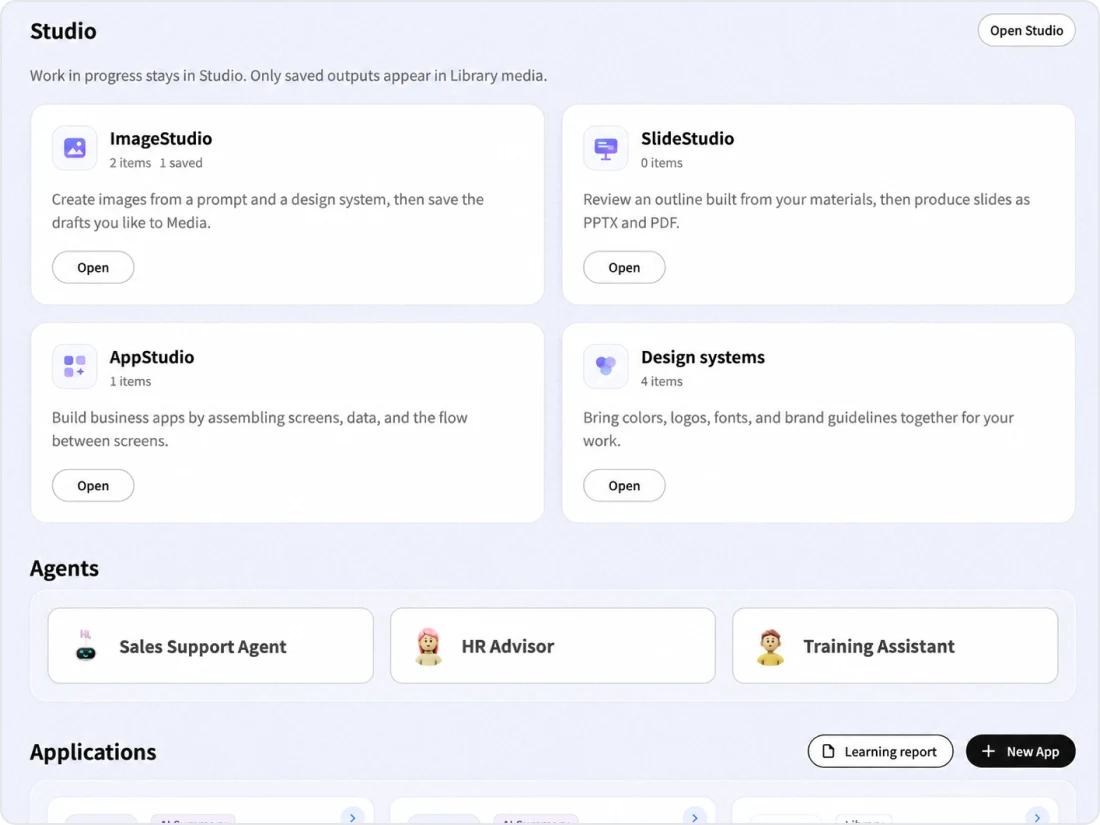
Kanata Studio is a set of creation tools made up of ImageStudio, SlideStudio, AppStudio and Design System. Create images and slides that follow your brand rules, grounded in documents from the Library, and build business apps by asking the AI agent. Only finalized work is saved to Media.
Video: Kanata Studio
An introduction to creating images and slides and building business apps with ImageStudio, SlideStudio, AppStudio and Design System.
Studios
What's in Studio
Studio has four parts: image creation, slide creation, business app building, and Design System for sharing brand rules.
Image creation
ImageStudio
Create images such as announcement banners and training notices from your instructions and Design System. Compare options and save only the one you choose to Media.
Learn moreSlide creation
SlideStudio
Create slides from meeting minutes and internal documents after reviewing an outline. Export as PPTX or PDF and save to Media.
Learn moreBusiness app building
AppStudio
Ask the AI agent for the business app you need, and it assembles the data, screens and connections between screens. On the canvas, you can make changes without writing formulas.
Learn moreSharing brand rules
Design System
Register seven items, such as your brand promise, logo, colors and fonts, and apply them to image and slide creation.
Learn morePlatform
The advantages of being part of an AI platform for organizations
Studio runs on the same foundation as Kanata's Library, AI Agent and Design System. Referring to the documents you need, saving your work, managing permissions and recording what AI created all happen on a single foundation.
Referring to internal documents and images
Choose reference documents from the Library, and reference images or images for slide image frames from Media.
Saving work and managing permissions
Saved images and slides are registered in Media, and folder permissions determine who can view them. App data is saved as Library content.
Recording AI-created work
Saved images and slides show their source (ImageStudio or SlideStudio) in the Library.
Choosing a Design System
Register your brand rules in Design System, and choose one for each creation in ImageStudio and SlideStudio.
Requests from the AI agent
AI agents permitted through execution permissions can create images, create slide outlines and build app drafts in response to requests in chat.
Managing consumption with credits
Image and slide creation are managed with the same credits as other features, and the estimated consumption is shown before you create.
Common flow
How image and slide creation works
- Input
Write instructions and choose reference documents, images and a Design System. The estimated consumption is shown before you create - Review outline
In SlideStudio, review the number of slides, titles, instructions and how images are used on each slide - Create
Creation continues even if you close the screen, and you get a notification when it is done - Review
Compare options, create similar variations, edit parts, or create in another size. Slides can be regenerated one at a time - Save
Save only what you choose to Media and share it with folder permissions. The Library shows its source
FAQ
Frequently asked questions
QDoes creation consume credits?
Yes. Creating images and slides consumes credits. ImageStudio and SlideStudio show the estimated consumption against your available credits before you create.
QIs work in progress saved to the Library?
Work in progress is managed inside Studio and is not registered in the Library. Only the images and slides you choose to save are registered in the Library's Media.
QCan the AI agent use Studio?
Yes. If you allow Studio in the AI agent's execution permissions, it can create images and slide outlines and build app drafts in response to requests in chat. Depending on the autonomy level, the requesting user reviews the plan before it runs. A record of image and outline creation remains in the Studio screen.
Last updated: