ImageStudio creates images such as announcement banners and training notices from your instructions and Design System. Specify reference images and internal documents, create one to four options, and save only the one you choose to Media.
ImageStudio is an image creation feature connected to Kanata's Library and Design System. Unlike simply giving instructions in a chat, you specify the number of images, reference images, reference documents, Design System, size and quality on a dedicated screen in addition to your instructions, and create while comparing options. Saved images are registered in Media and managed with folder permissions, so images are less likely to end up scattered across personal PCs and separate tools.
01
What it covers
Creating images such as announcement banners, notices for training and internal events, and diagrams for documents
02
Best suited for
Organizations that outsource image creation or rely on a few people, and want each department to create images while following brand and generative AI usage rules
03
What you can aim for
Reducing back-and-forth on image requests and revisions, and making it possible to check later who created what, with which references and which Design System
Problem
Challenges organizations face in creating images
Surveys show that while infringement of rights such as copyright and leaks of internal information are cited as risks of generative AI, only some companies have risk management in place for risks specific to AI.
Share citing "may infringe copyright and other rights" as a risk of generative AI (Japan)
31.3%
The most common answer was "security risks such as leaks of internal information" at 46.4%, followed by "problems with the accuracy of outputs" at 35.3%.
We want to create images with generative AI, but concerns about rights and expression risks make it "hard to set usage rules"
Each person uses a different tool, so "brand colors and logo usage are not consistent"
Image creation is outsourced or left to a few people, and "revisions take a long time"
Images end up scattered across personal PCs and tools, and "no one knows where they are"
Simply adopting separate image generation tools can leave reference documents, created images and records of generative AI use split across tools. The creation process and its records need to sit within your business platform.
Scenes
How ImageStudio is used
Examples of how department staff use ImageStudio. The video shows how to create an image announcing a training course.
The companies and people shown are fictitious.
Scene 01
An image announcing a training course
HR and admin staff
BeforeEvery time they requested an image announcing a training course, the back-and-forth on revisions took a long time.
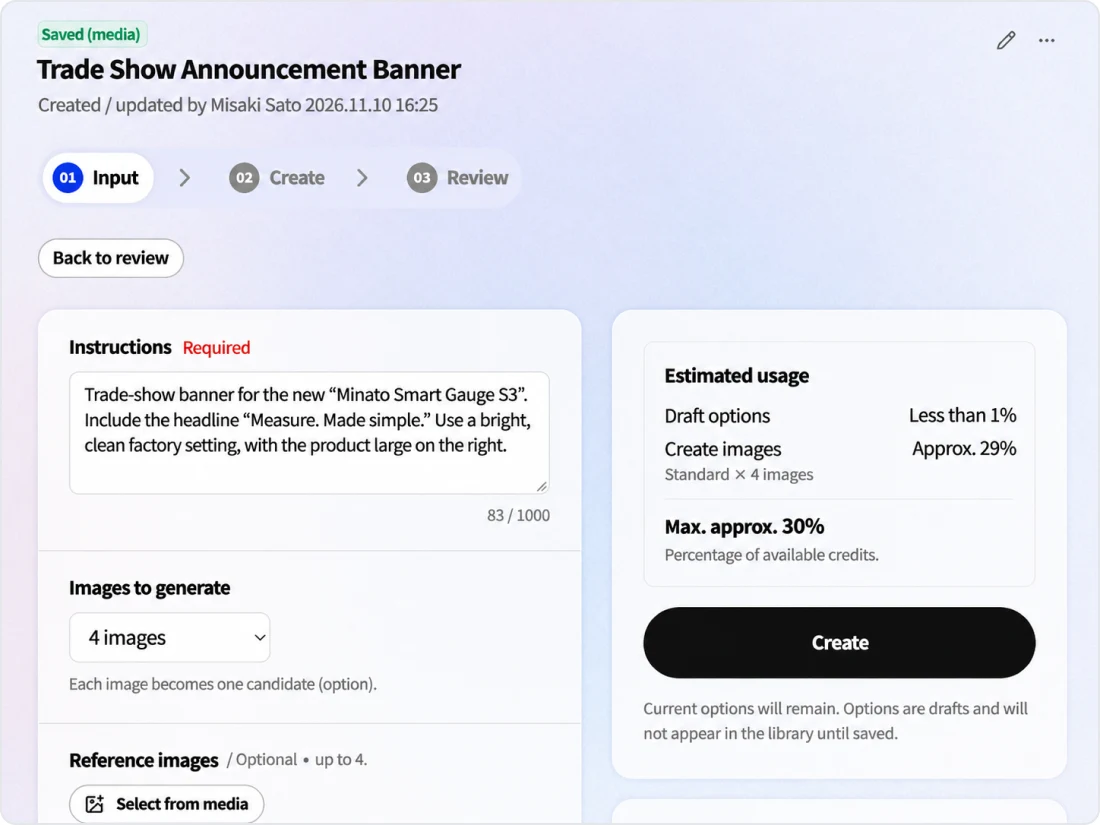
Specify instructions and reference imagesIn addition to instructions, specify reference images ("material" or "mood") and internal documents such as the training notice text.
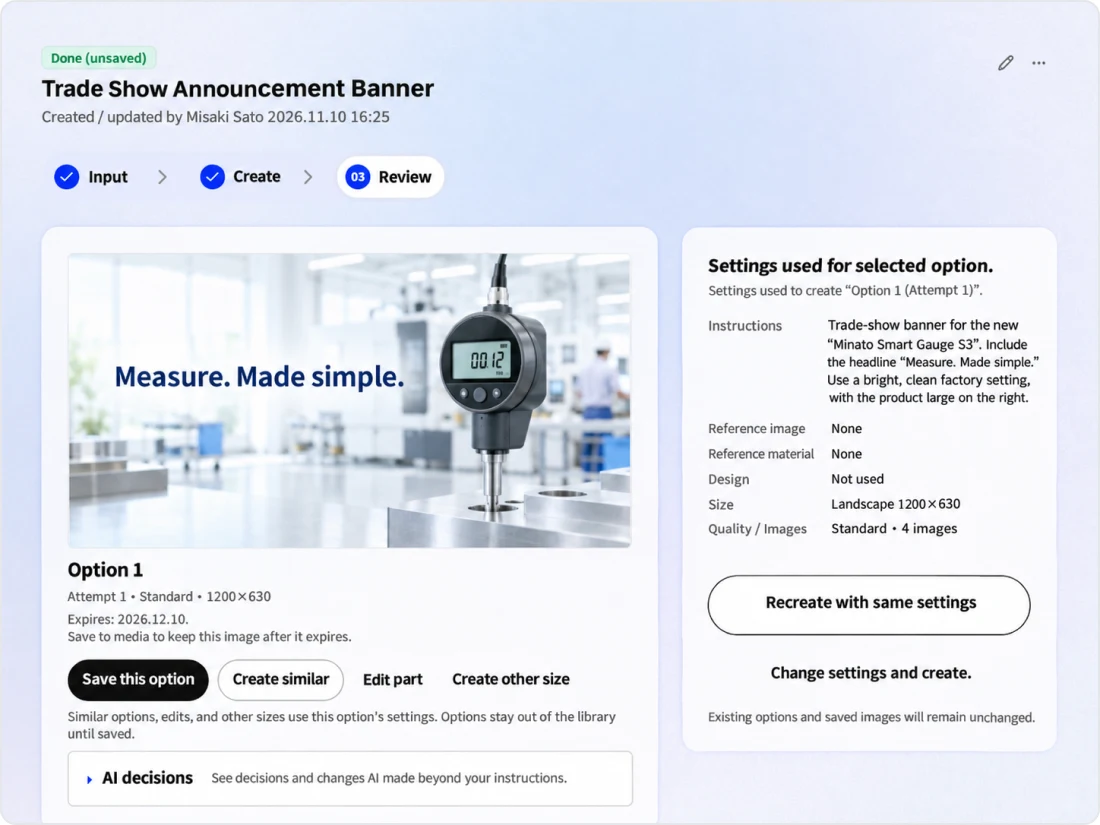
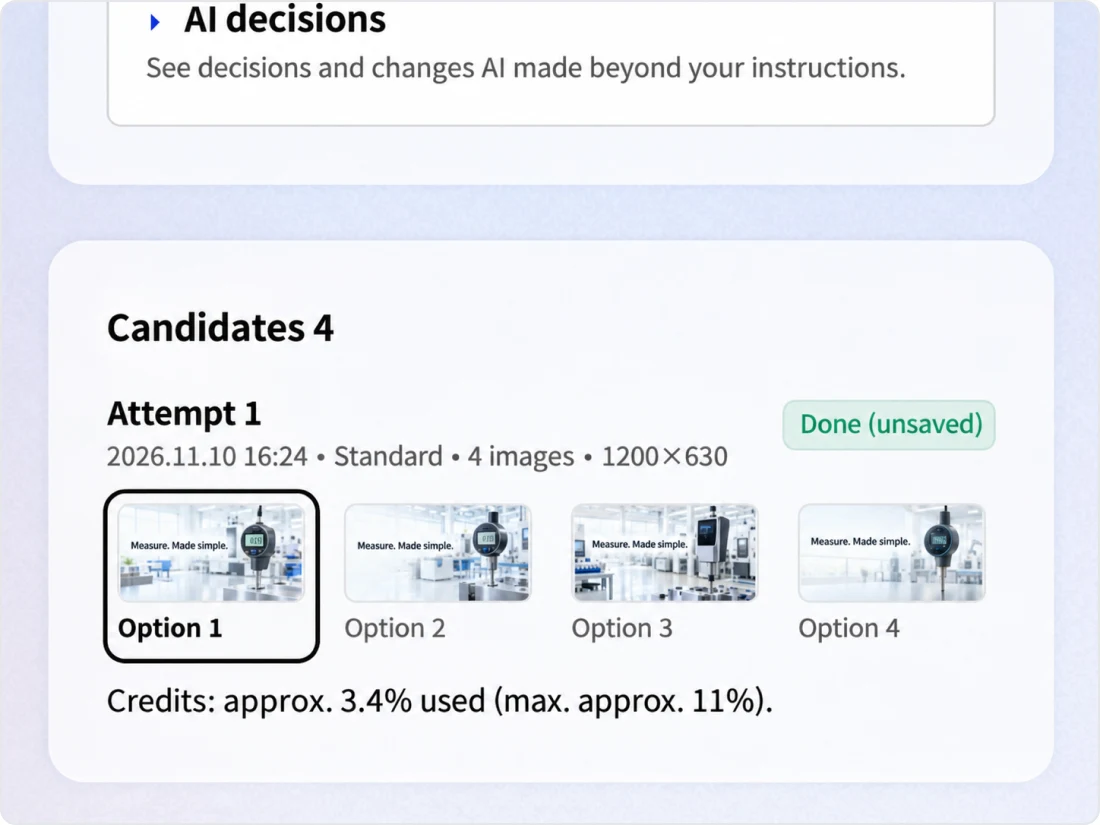
Compare optionsCompare options where the first follows the instructions and the rest each change one of composition, background or style, then pick one.
Review and saveReview the content, then save the chosen option to Media. Saved images are used in Library documents and elsewhere.
With KanataStaff compare options themselves and announce the training with the image they have reviewed.
BeforeEach person used a different tool, so brand colors and logo usage were not consistent.
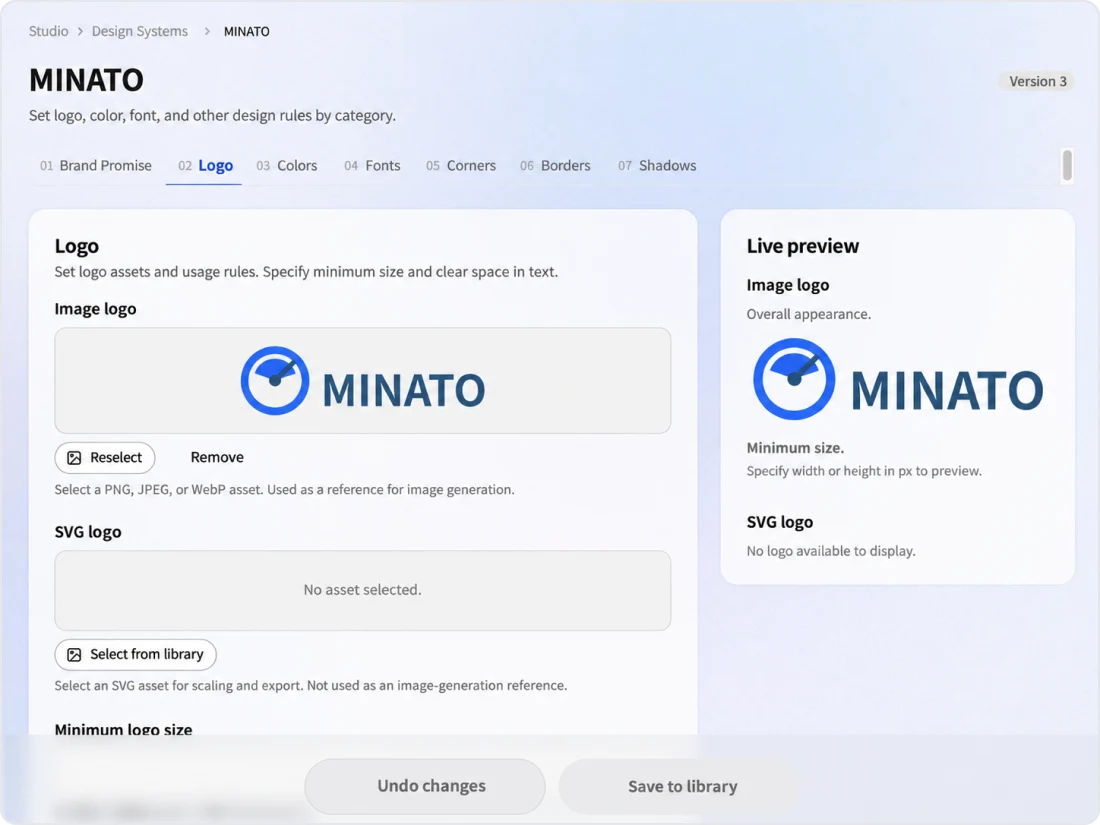
Choosing a Design SystemChoose one Design System when creating, and settings such as colors and the brand promise are included in the instructions for the image AI.
Placing the logoThe logo is not drawn by the image AI; the logo image registered in Design System is overlaid after creation.
Creating other sizesFrom the chosen option, create the other sizes the announcement needs. The current options remain as they are.
With KanataWhoever creates them, announcement images follow the same color and logo rules.
BeforeImages ended up scattered across personal PCs and tools, and no one knew where they were.
Refer to the draftCreate the image with the announcement draft in the Library specified as a reference document.
Save to MediaOptions do not go into the Library until saved, and only the chosen option is saved to Media. Who can view it is managed with folder permissions.
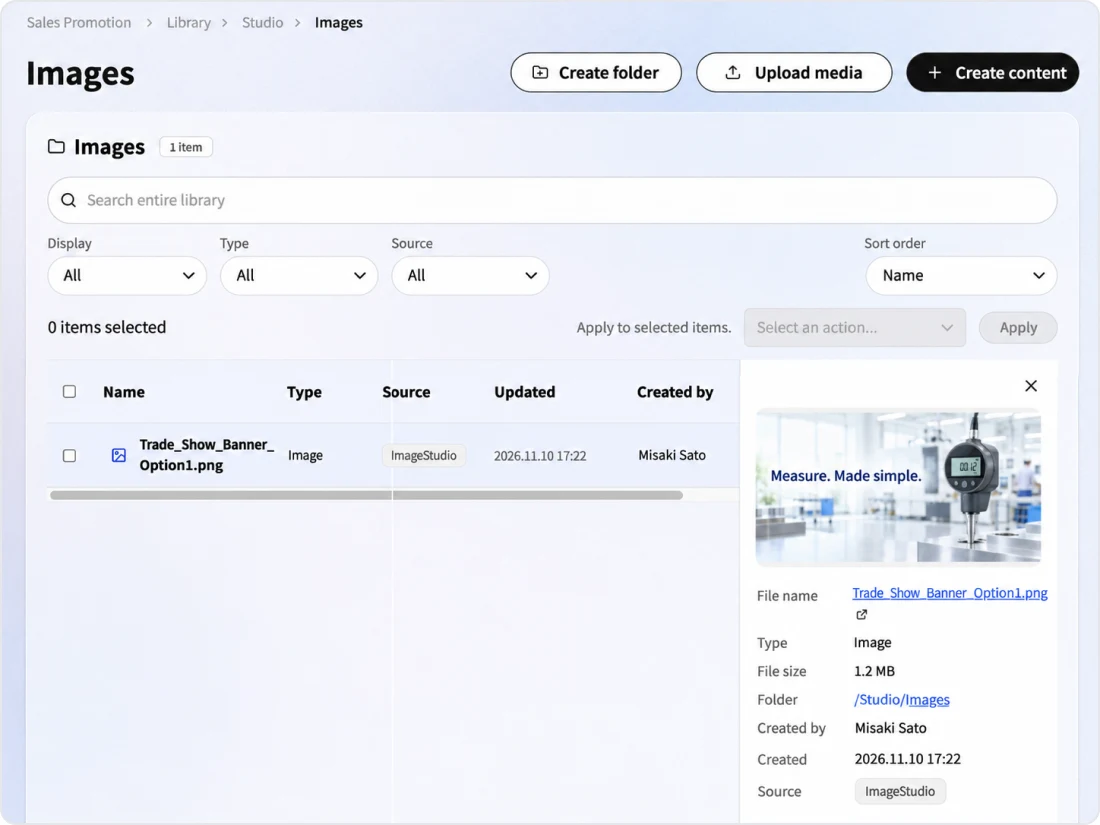
Check the generation informationSaved images show the source "ImageStudio" in the Library.
With KanataImages are stored together in Media, and people review the content before using it externally, using the displayed source as a guide.
These scenes are examples of use. The people shown are fictitious.
Platform
The advantages of being part of an AI platform for organizations
ImageStudio runs on the same foundation as Kanata's Library, Design System and AI Agent. Referring to the documents needed for image creation, managing where images are saved and who can access them, and recording usage all happen on a single foundation.
Referring to Library documents and images
Choose reference images from Media and reference documents from the Library.
Managed with folder permissions
Saved images are registered in Media, and folder permissions determine who can view them.
Choosing a Design System
Choose one Design System for each creation, the same Design System used by SlideStudio.
Requests from the AI agent
AI agents permitted through execution permissions create images in response to requests in chat. Depending on the autonomy level, the requesting user reviews the plan before creation.
Use in the Library
Select saved images from Media and use them in Library documents and elsewhere.
Managing consumption with credits
Image creation is managed with the same credits as other features. The estimated consumption against your available credits is shown before you create.
Features
ImageStudio features
In ImageStudio, you create images in the order "input → create → review → save". Work in progress is managed inside Studio, and only the option you choose to save is registered in Media.
Instructions and reference images
Create by specifying instructions, reference images ("material" or "mood") and reference documents.
Compare options and regenerate
Compare up to four options and regenerate from the one you choose.
Brand and records
Applies your Design System and shows the source of saved images.
Main features
Decide
Specify instructions and reference images
Specify the image name, instructions, reference images, reference documents, size and quality
Specify up to four reference images, and for each choose "material" (use what is shown as it is) or "mood" (use only the colors and feel as reference). Choose the size from square, landscape, wide, portrait or custom, and the quality from rough, standard or fine; the estimated consumption based on quality and number of images is shown before you create.
Review
Compare options and regenerate
Compare an option that follows the instructions with options that vary composition, background and style
When you create two or more images, the first follows the instructions and each of the rest changes one aspect not specified in the instructions. "What AI decided" shows what AI decided for parts not covered by the instructions. Regenerating from a chosen option uses the settings that option was created with, and the current options remain.
Brand
Design System and logo examples
Apply colors, logo and brand promise
Choose one Design System, and settings such as colors and the brand promise (tone, prohibited items) are included in the creation instructions; you also choose whether to add the logo. People check before saving that the output follows the settings. The logo is not drawn by the image AI; the registered logo image is overlaid after creation.
Save
Saving to Media and generation information
Save only the chosen option and record AI creation
Options remain in Studio as drafts and do not go into the Library until saved. Saved images are registered in Media and show the source "ImageStudio" in the Library list and details.
Kanata — The Beyond, Made RealKanata — The Beyond, Made RealKanata — The Beyond, Made RealKanata — The Beyond, Made RealKanata — The Beyond, Made RealKanata — The Beyond, Made RealKanata — The Beyond, Made RealKanata — The Beyond, Made Real
Kanata — The Beyond, Made RealKanata — The Beyond, Made RealKanata — The Beyond, Made RealKanata — The Beyond, Made RealKanata — The Beyond, Made RealKanata — The Beyond, Made RealKanata — The Beyond, Made RealKanata — The Beyond, Made Real
FAQ
FAQ
QHow can we tell an image was created with AI?
Saved images show the source "ImageStudio" in the Library list and details. Before using images externally, please have a person review the content according to your internal generative AI usage rules.
QCan we add text to images?
Yes. Include text such as headlines and captions in the instructions, and it is generated together with the image. Text may come out distorted, so please check it before saving.
QWhich formats can be used as reference images?
PNG, JPEG and WebP. You can specify up to four reference images and choose "material" or "mood" for each.
QWhich image sizes can be created?
Square (1024×1024), landscape (1200×630), wide (1920×1080), portrait (1080×1350), and custom, where you enter the width and height. A chosen option can also be created in another size.
QDoes creation consume credits?
Yes. Consumption depends on quality (rough, standard, fine) and the number of images. The estimated consumption against your available credits is shown before you create.
QCan we ask the AI agent to create images?
Yes. If you allow ImageStudio in the AI agent's execution permissions, it creates images in response to requests in chat. Depending on the autonomy level, the requesting user reviews the plan before creation. A record of the creation remains in the ImageStudio screen.
Start with the FREE plan and try Kanata on a single task. The more internal knowledge you store in the Library, the more information the AI can use as the basis for its answers.
We use cookies to improve our services and optimize your experience. Apart from essential cookies, analytics cookies are set only with your consent. For details, see our Cookie Policy.