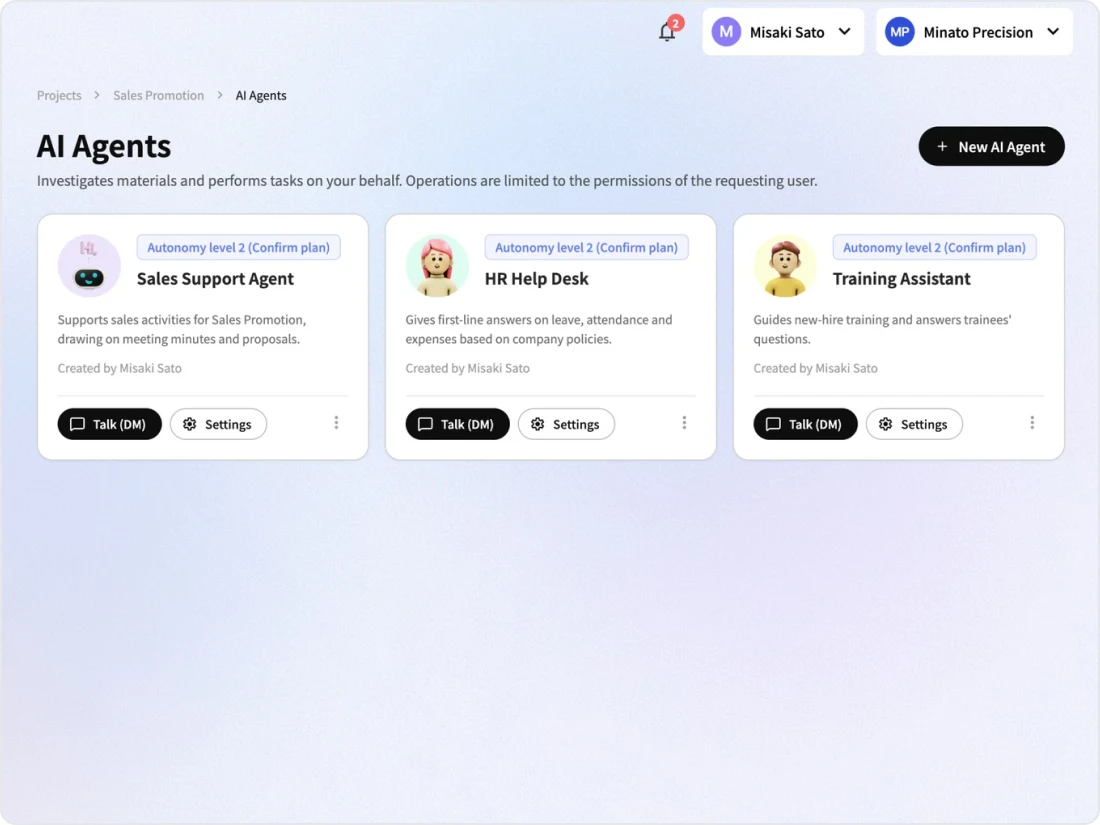
Kanata AI Agent carries out work requested in chat, based on the internal knowledge in the Library. You can entrust it with everything from answering questions to creating documents, operating apps, creating images and drafting slide outlines. As a harness that keeps AI running safely, you set reference folders, execution permissions and the autonomy level in advance.
Kanata AI Agent runs on Kanata's servers and, based on Library content, uses apps and Studio as tools to carry out research and work on behalf of the requesting user. Its actions are limited to that user's permissions.
01
What it covers
Answering questions in chat, creating and editing documents, operating apps such as scheduling recordings, creating images and drafting slide outlines
02
Best suited for
Organizations with many internal inquiries and routine tasks that want to expand AI use while managing what is entrusted to AI and tracking its usage
03
What you can aim for
Reducing the effort of handling inquiries and creating documents, and making it possible to check what AI based its answers on and what it did
Problem
Challenges organizations face in using AI agents
Surveys show that only some organizations in Japan connect generative AI to internal data. Concerns about generative AI include the accuracy of information, information leaks and accountability when problems occur, and more than half of companies report a shortage of full-time employees.
Share with an environment where generative AI learns from or refers to internal data (Japan)
24.5%
The share answering "we have generative AI learn from internal data or have built a database generative AI can refer to". It was 57.2% in the US, 54.4% in Germany and 73.0% in China.
Even with generative AI chat in place, it may not refer to internal documents, and "we can't tell what answers are based on"
We want to entrust work to AI, but "we don't know what it will do" before it runs
Each department uses separate AI tools, and "knowledge and work aren't connected"
Short-staffed, people "lose time" to routine tasks and inquiries
Simply rolling out a chat tool makes it hard for internal knowledge to become the basis for AI, and leaves few records of work entrusted to AI. You need a mechanism that answers based on internal knowledge and reviews the plan before acting.
Scenes
How Kanata AI Agent is used
Examples of how departments use Kanata AI Agent. The video shows how a department admin sets what is entrusted to AI and how it is reviewed.
The companies and people shown are fictitious.
Scene 01
Inquiries about internal policies
HR and admin staff
BeforeHandling inquiries about internal policies took up a lot of time.
Set reference foldersSet the folder where internal policies are stored as a folder the AI agent refers to.
Ask in a DMWhen employees ask in a DM, the AI agent gives a first-line answer based on internal policies.
Answers within viewing permissionsDocuments the person asking cannot view are not used as a basis.
With KanataFirst-line answers based on policies are left to the AI agent, and staff handle consultations that need judgment.
These scenes are examples of use. The people shown are fictitious.
Before and after
Compared with before AI agents
Until now, people carried out work by operating each system's screens, and generative AI chat handled answers and drafts. Kanata AI Agent carries out work by operating Kanata's features directly.
Point
Before generative AI (manual operation)
Generative AI chat (for answers)
Kanata AI Agent
How work gets done
Staff open and operate each system's screens
AI creates answers and drafts; people mostly handle input and operations in systems
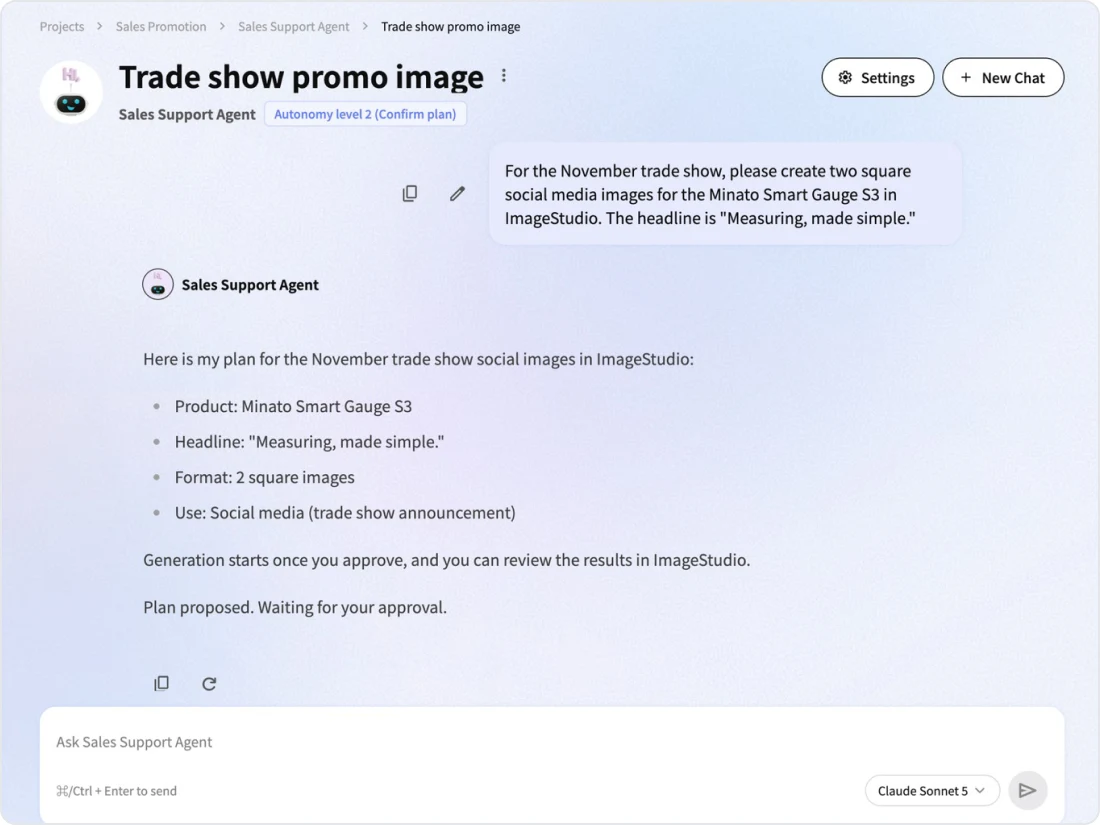
The AI agent presents a plan and operates Library, Apps and Studio features directly. It keeps running even if you close the screen after requesting
Information used as the basis
Staff look for documents and judge with their own knowledge
Mainly what is entered in the conversation. Internal documents may need to be entered each time
Based on internal knowledge in the reference folders
Permissions
System permissions are granted to each user
Permissions may be managed separately for the AI tool and internal systems
AI has no permissions of its own and acts within the requesting user's permissions
How to request
Ask the person in charge verbally or by email
Open a separate AI tool and enter the necessary information
Request in a chat DM, or with the button at the bottom right without leaving the screen you are working on
Record
Remains as each person's work
May remain as conversation history
Credits are counted as usage by the requesting user
Server side
How it operates Kanata on the server side
Kanata AI Agent does not operate the user's PC or browser screen; it uses Library, Apps and Studio features as tools on Kanata's servers. Actions are checked against the requesting user's permissions.
01 · Request
Requests from chat and the bottom-right button
Requests in chat DMs
Requests from the AI agent at the bottom right (using the current screen as context)
[Ask AI] in minutes and e-Learning materials
02 · Kanata AI Agent
Plan and permission checks
Checked against the requesting user's permissions
Plan reviewed according to the autonomy level
The requesting user approves the plan
03 · Tools
Operating Kanata features
Reading and writing in the Library
Operating apps (scheduling meetings, etc.)
Creating images and outlines in Studio
Web search (if allowed)
04 · Output and records
Answers, saving and records
Answers in DMs
Saving to the Library
The requesting user's credits are consumed
Unlike approaches that record and replay screen operations, it uses Kanata's features directly, so it is less affected by changes to screen layout.
Execution continues even if you close the screen after requesting. Actions that need confirmation pause as "awaiting confirmation" and appear in the list of items awaiting confirmation.
Platform
The advantages of being part of an AI platform for organizations
Kanata AI Agent runs on the same foundation as the Library, Apps, Studio and chat. There is no need to set up connections to internal knowledge, permission checks or usage records separately for AI.
Internal knowledge in the same Library
Minutes, documents and app data accumulate in the same project's Library. Choose reference folders, and they become the basis for the AI agent.
Same permission checks as users
AI has no permissions of its own and acts within the permissions the requesting user has in the Library, Apps and Studio.
Operating Apps and Studio directly
App operations such as scheduling meetings, and creating images and slide outlines, are carried out as Kanata features.
Credit management
Credits are counted as usage by the requesting user, and space admins check the remaining credits and purchase additional credits as needed.
Managing consumption with credits
The AI agent's credits are consumed as usage by the requesting user.
Requests from the bottom right of the screen
Use the button at the bottom right of the project screen to ask the AI agent without leaving the screen you are working on. The screen being displayed is used as context.
Features
Kanata AI Agent features
Kanata AI Agent takes requests from chat DMs or the button at the bottom right of the screen, and answers and acts based on internal knowledge in the Library. Custom instructions, reference folders, execution permissions and autonomy level are set for each agent.
Custom instructions and reference folders
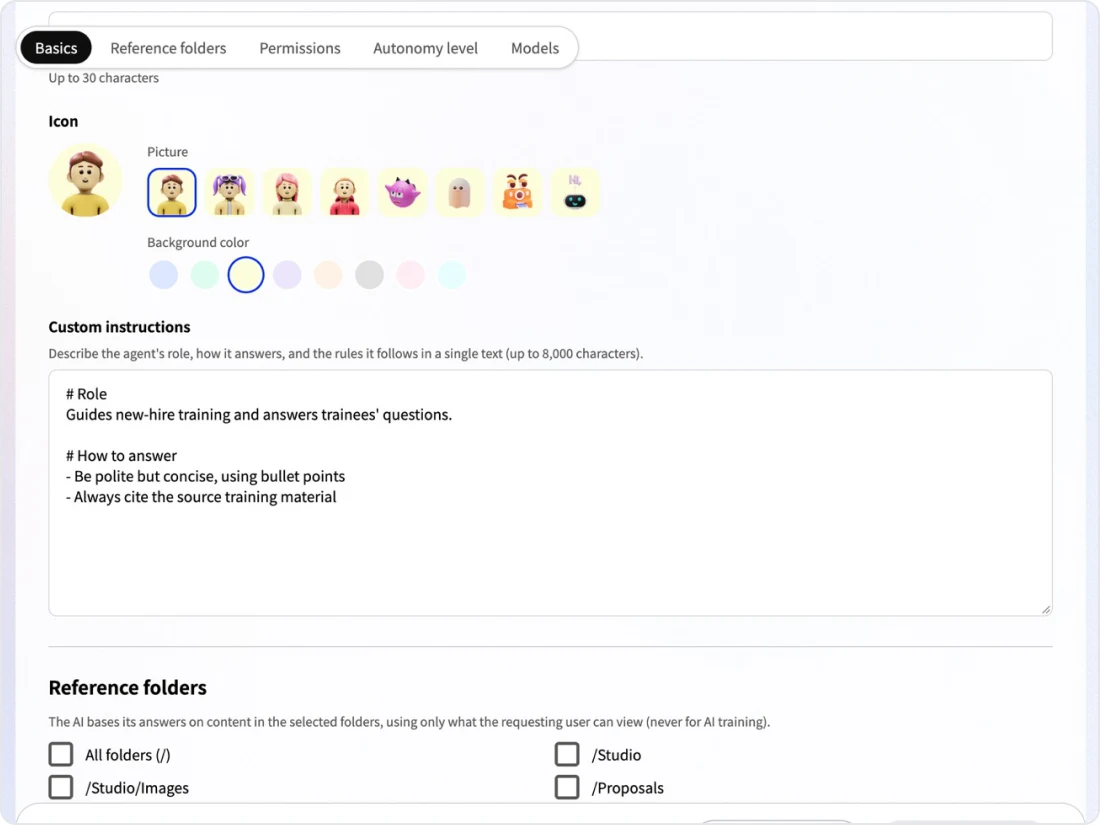
Describe the role, answering style and rules to follow in a single text, and set the folders it refers to as a basis.
Execution permissions and autonomy level
Set read, write and execute permissions for each tool, and the scope for plan review.
Requests from chat and the bottom-right button
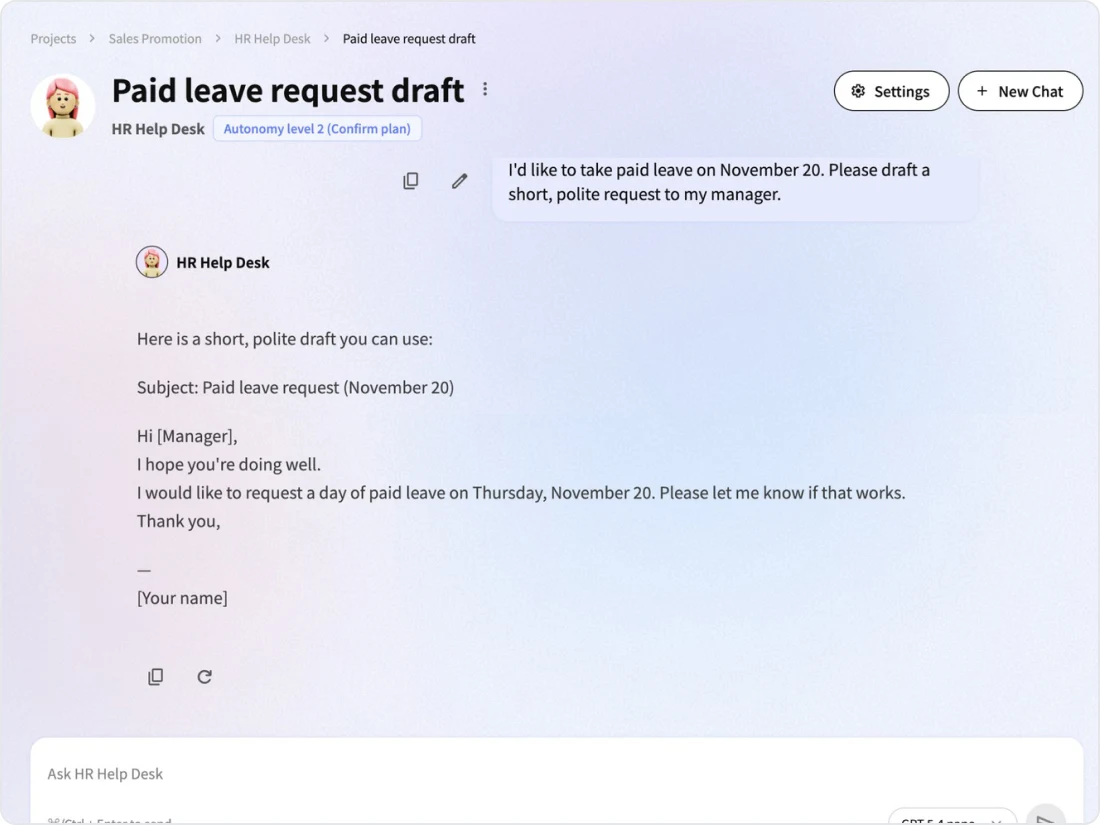
Switch between multiple chats for each agent, and make requests from the screen you are working on.
Main features
Settings
Custom instructions and reference folders
Set the answering style and scope of sources for each agent
Set the name, icon and custom instructions. In custom instructions, describe the role, answering style and rules to follow (such as what it should not answer) in a single text (up to 8,000 characters). Choose reference folders, and all content in them becomes candidate sources, so there is no need to select files one by one.
Approval
Plan review and autonomy levels
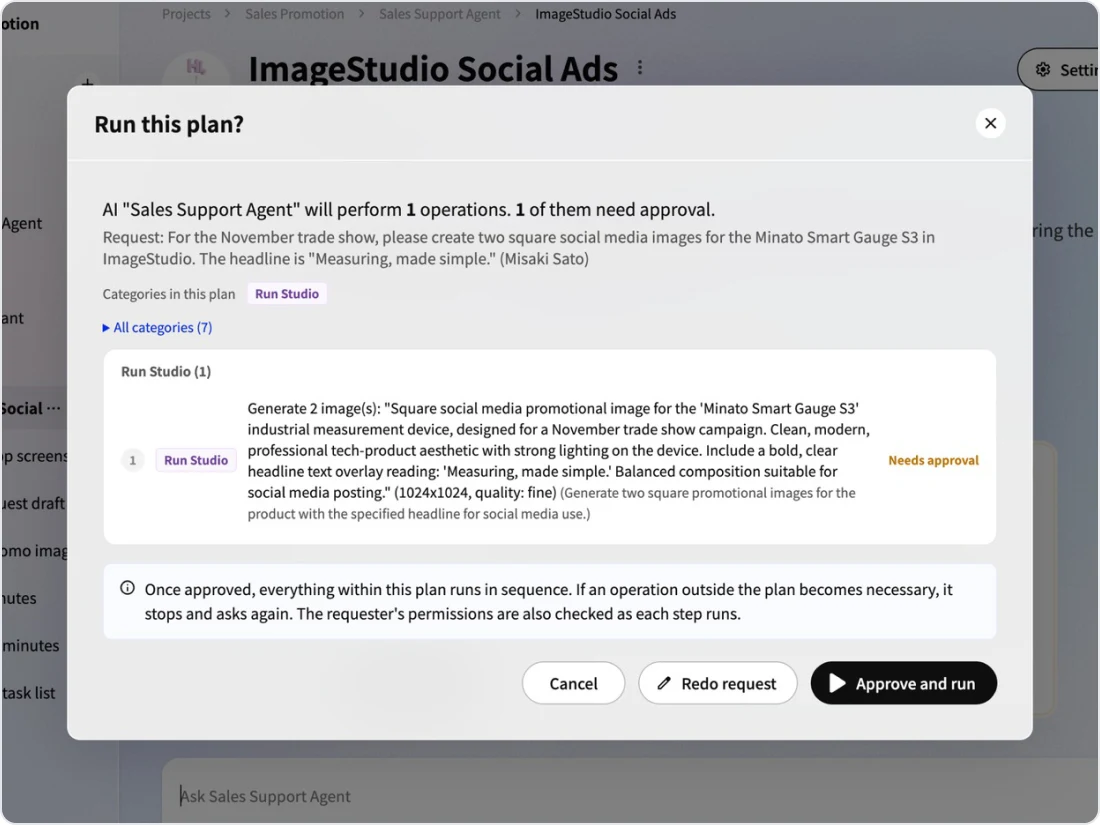
Review the plan before writes and app executions, according to the autonomy level
Choose from autonomy level 1 (suggest only), level 2 (review the plan and run) or level 3 (run automatically). At level 2, only the approved scope runs continuously, and it stops and asks again when an action beyond that scope is needed. Publishing, overwriting, deleting, schema changes and Studio runs that include four or more creations are confirmed even at level 3.
Chat
Requests in chat
Use multiple chats for each agent
In chat DMs, create multiple chats with each agent and use them for different topics. A chat is titled from the first request and can be renamed later. Documents the user in the conversation cannot view are not used.
Anywhere
The AI agent at the bottom right
Ask right from the screen you are working on
Use the button at the bottom right of the project screen to ask the default AI agent. The current screen is provided as context, and you can remove the context with [Remove]. The conversation remains in your chat DMs, and [Open in DM] lets you continue there. Plan review, permissions and credit checks work the same as in DMs. The button is not shown on chat DM screens or full-screen views (such as the AppStudio canvas).
Approval
Types of actions and when they are confirmed
The agent's actions fall into seven types, and each autonomy level determines whether they are confirmed before running. Read-only requests are answered directly at any autonomy level.
Category
Task
Level 1 Suggest only
Level 2 Review plan and run
Level 3 Run automatically
Read
Read documents and records
No confirmation
No confirmation
No confirmation
Write
Create and edit documents in the Library
Suggest only
Confirm
No confirmation
Run app
Operate apps (scheduling meetings, etc.)
Suggest only
Confirm
No confirmation
Run Studio
Create images, slide outlines and more
Suggest only
Confirm
No confirmation
Publish
Publish (apps are published by users in AppStudio)
Suggest only
Confirm
Confirm
Schema change
Change content type fields
Suggest only
Confirm
Confirm
Delete and overwrite
Delete or overwrite (adds a version)
Suggest only
Confirm
Confirm
Studio runs are confirmed even at autonomy level 3 when a single plan includes four or more creations.
Only project admins can choose autonomy level 3. Only the requesting user can approve a plan.
Rules
Rules for using the AI agent
Rules on permissions, approval, consumption and conversations when making requests to the AI agent.
Within the requesting user's permissions Actions always run on behalf of the requesting user and within that user's permissions.
Only documents the user can view Only documents the user in the conversation can view are used as a basis.
Approval by the requesting user Only the requesting user can approve a plan.
Consumed as the requesting user's usage Credits are consumed as usage by the requesting user.
How conversations are handled Conversations remain in chat DMs and are not saved to the Library.
Default agent You can set a default AI agent for each project, which is what the button at the bottom right of the screen talks to. The button is not shown on chat DM screens or full-screen views (such as the AppStudio canvas).
Credit consumption and management Credits used by the AI agent are counted as usage by the requesting user. Space admins can check the remaining credits and purchase additional credits as needed.
Kanata — The Beyond, Made RealKanata — The Beyond, Made RealKanata — The Beyond, Made RealKanata — The Beyond, Made RealKanata — The Beyond, Made RealKanata — The Beyond, Made RealKanata — The Beyond, Made RealKanata — The Beyond, Made Real
Kanata — The Beyond, Made RealKanata — The Beyond, Made RealKanata — The Beyond, Made RealKanata — The Beyond, Made RealKanata — The Beyond, Made RealKanata — The Beyond, Made RealKanata — The Beyond, Made RealKanata — The Beyond, Made Real
FAQ
FAQ
QWhat happens to the existing AI Chat?
AI Chat will be discontinued in the new version. You will ask AI for help through chat DMs and the AI agent at the bottom right of the screen. AI Chat apps, settings and conversations will not be migrated to the AI agent or chat. How past conversations are handled (the period for viewing and exporting them) will be announced in our news. Save documents you want the agent to refer to in its reference folders.
QHow is the scope the agent refers to determined?
Within the "reference folders" set for each agent, only what the user in the conversation can view is used as a basis. When writing, only folders the requesting user can write to are eligible.
QCan we use multiple chats with one agent?
Yes. Create multiple chats with each agent and switch between them for different topics. A chat is titled from the first request and can be renamed or deleted. Documents created remain even if the chat is deleted.
QCan we ask the AI agent from the screen we're working on?
Yes. Use the button at the bottom right of the project screen to ask the default AI agent. The current screen is provided as context, and the conversation remains in your chat DMs. The button is not shown on chat DM screens or full-screen views (such as the AppStudio canvas).
QCan we choose the AI model to use?
Yes. For each agent, set the model selected first in chat and the models available. In the DM input field, the requesting user chooses a model from among them.
QDoes the AI agent keep running after the screen is closed?
Yes. Because the AI agent runs on Kanata's servers, execution continues even if you close the screen after requesting. Actions that need confirmation pause as "awaiting confirmation" and appear in the list of items awaiting confirmation.
QCan it post to Slack or Teams?
Posting to external services is not supported. If asked to post, it only provides a draft of the text and does not send anything externally.
QWhose credits does the AI agent use?
Credits are consumed as usage by the user who made the request. Space administrators can check the remaining credits and purchase more as needed.
Start with the FREE plan and try Kanata on a single task. The more internal knowledge you store in the Library, the more information the AI can use as the basis for its answers.
We use cookies to improve our services and optimize your experience. Apart from essential cookies, analytics cookies are set only with your consent. For details, see our Cookie Policy.